
 日本語
 Español
 한국어
 简体中文
 Português
 Français
 Deutsch
 Italiano
 ไทย
 العربية
 Polski
 Bahasa Indonesia
 Türkçe
 हिन्दी
 বাংলা
 Русский
 Tiếng Việt
 Nederlands
 Svenska
 Dansk
 Norsk
 Čeština
 עברית
 Filipino
 Bahasa Melayu
How to use a watch folder with any scanner
If your scanner isn’t driven by Cardloader, let its own software save the scans into a folder. A watch-folder session notices every new picture and identifies the card while you keep scanning.
What you need
- Scanning software that saves each scan as a picture into a folder (for example PaperStream Capture, or a phone app that syncs into a folder).
- An identification engine: the Ximilar API, a local model or an AI agent.
Choose Watch folder
Click New session and choose Watch folder under Source. Pick the folder your scanning software saves into; the dialog counts the pictures already there and says that new ones will be picked up while the session runs.
Set Images per card to Front + back pairs if the scanner saves both sides, then choose the engine in the Identify tab as usual.
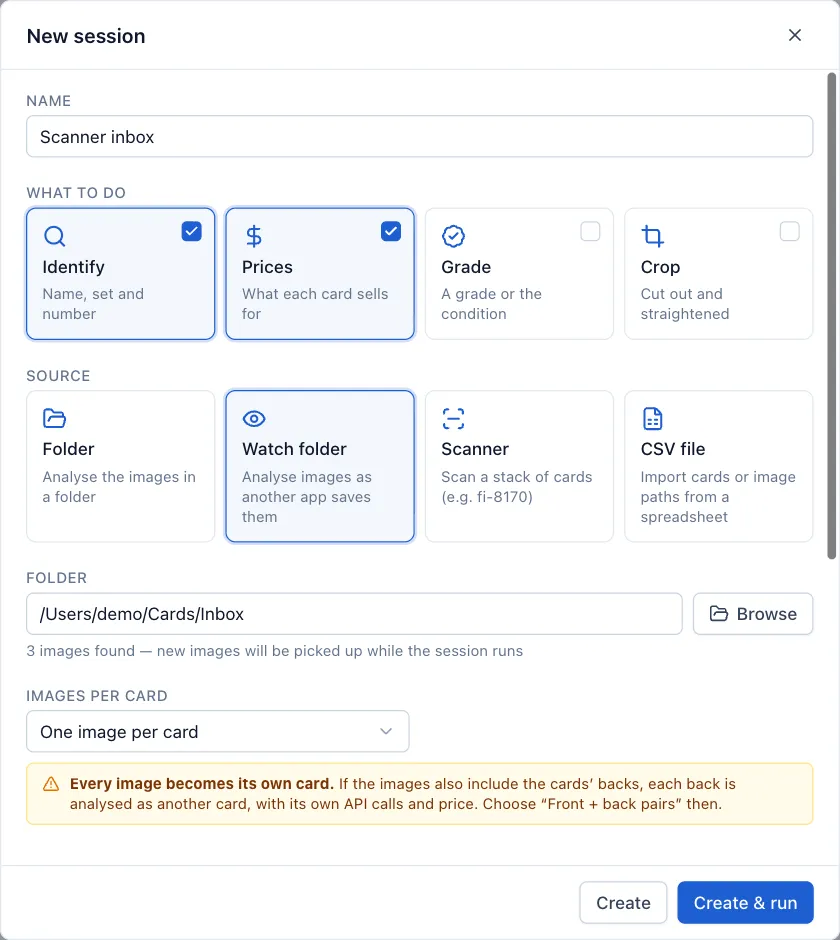
Start it and scan
Click Create & run and start scanning. Each new picture appears as a row and is identified a moment later; the session stays Running and waits for more.
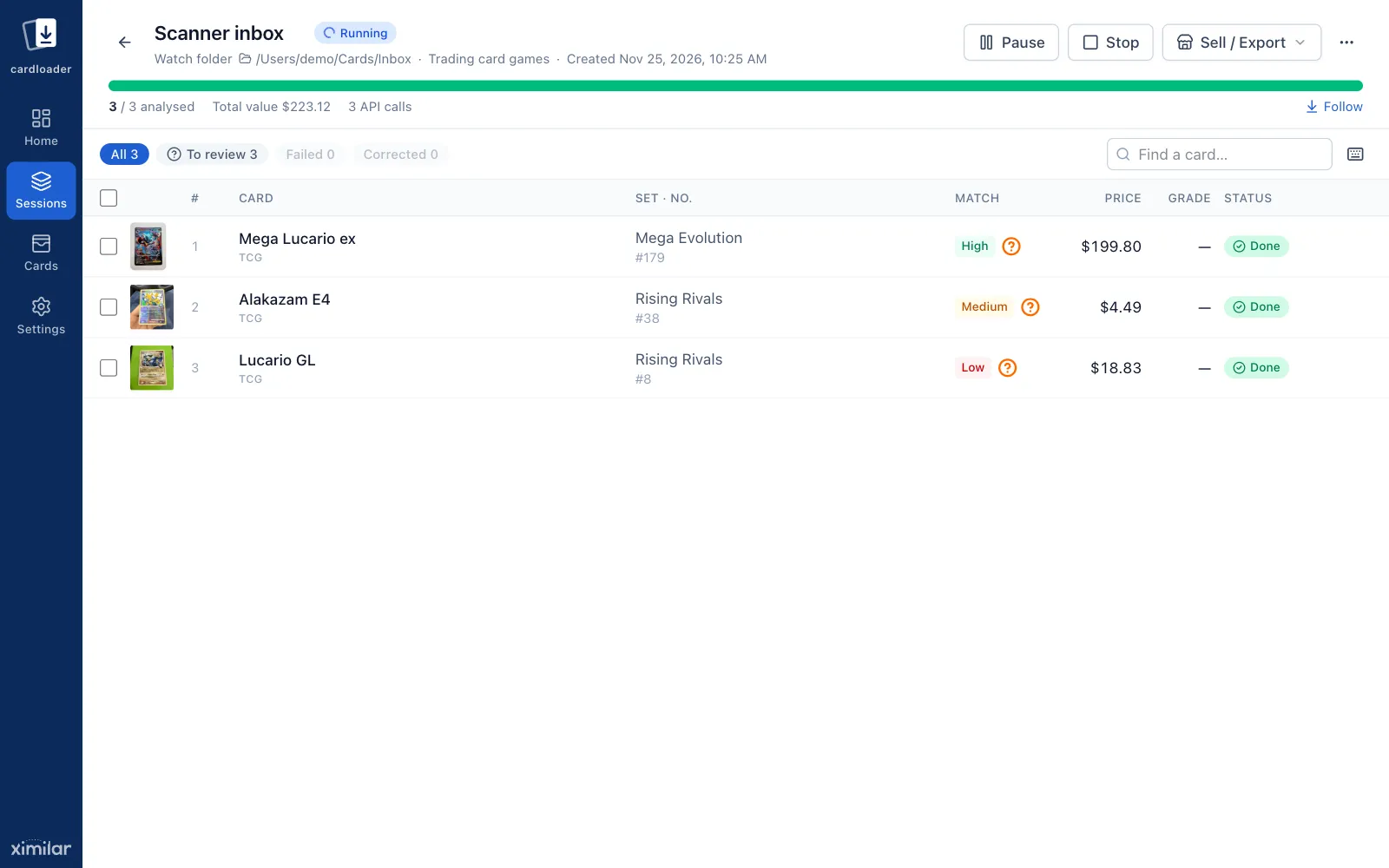
Stop when you’re done
Click Stop when the last card is in. Pause holds the queue for a while; a stopped session can be run again later and picks up pictures added since.
A Fujitsu/Ricoh fi-8170 can also be driven by Cardloader directly, with no other software (scanner setup).
Related tutorials
How to scan cards with the Ximilar API
Identify a folder of trading card pictures with the Ximilar API in Cardloader: name, set, number, a confidence for each match and market prices.
Using both sides of the card for sports card scanning
Pair each sports card’s front and back pictures and send both to identification, with Magic AI for cards that aren’t in the database. Step by step.
Start scanning your cards for free
Download Cardloader for Windows, macOS or Linux, point it at a folder or your scanner, and identify your first batch in minutes. No subscription and no account needed.