
 日本語
 Español
 한국어
 简体中文
 Português
 Français
 Deutsch
 Italiano
 ไทย
 العربية
 Polski
 Bahasa Indonesia
 Türkçe
 हिन्दी
 বাংলা
 Русский
 Tiếng Việt
 Nederlands
 Svenska
 Dansk
 Norsk
 Čeština
 עברית
 Filipino
 Bahasa Melayu
Changing the defaults for new sessions
Every choice in the New session dialog starts from a default. Set the defaults once to match how you work, and each new session opens ready to run.
What you need
- Cardloader. A session you already made keeps its own settings.
Pick the default engine
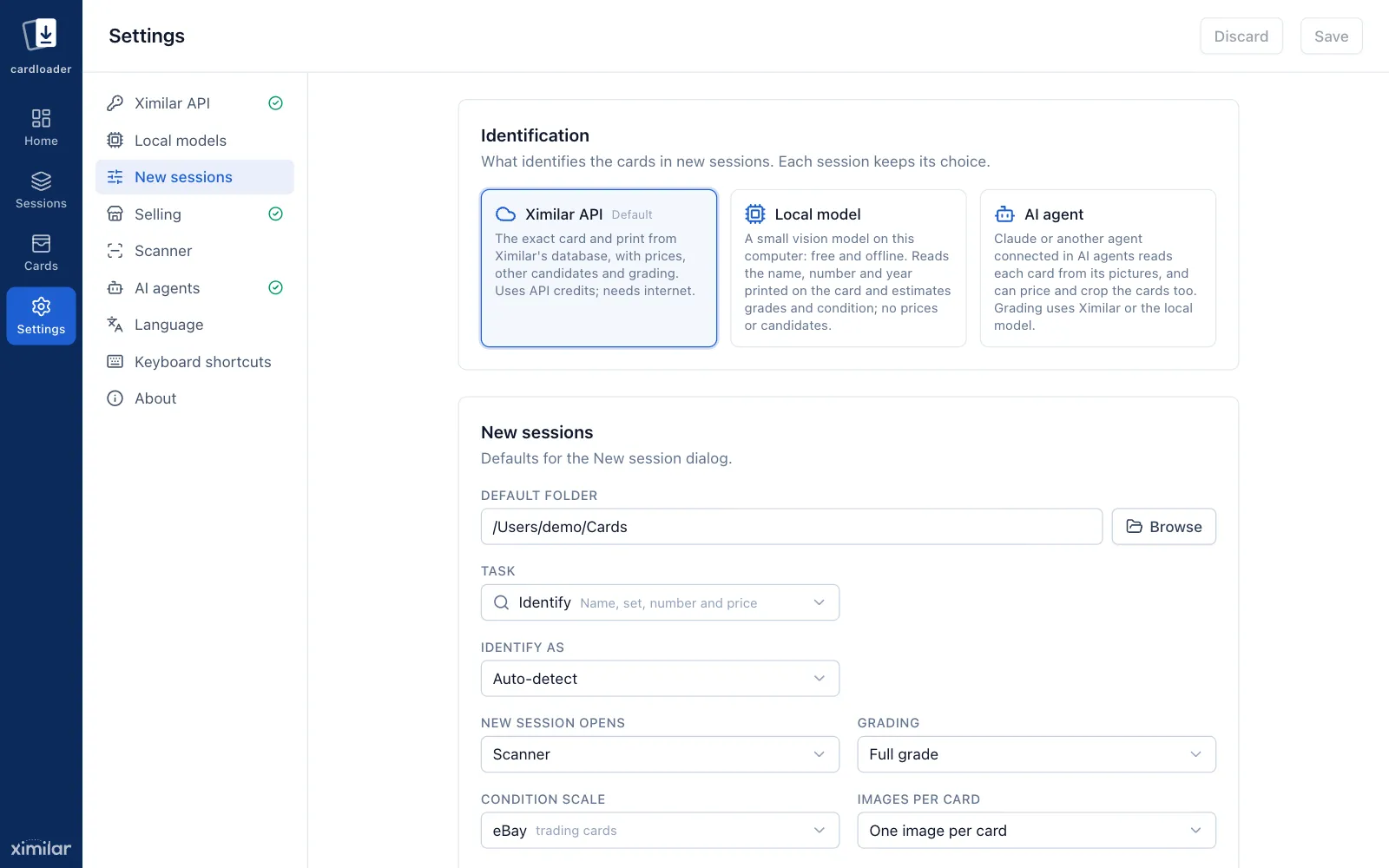
Open Settings › New sessions. Under Identification, choose what identifies the cards by default: Ximilar API, Local model or AI agent.
Set the session defaults
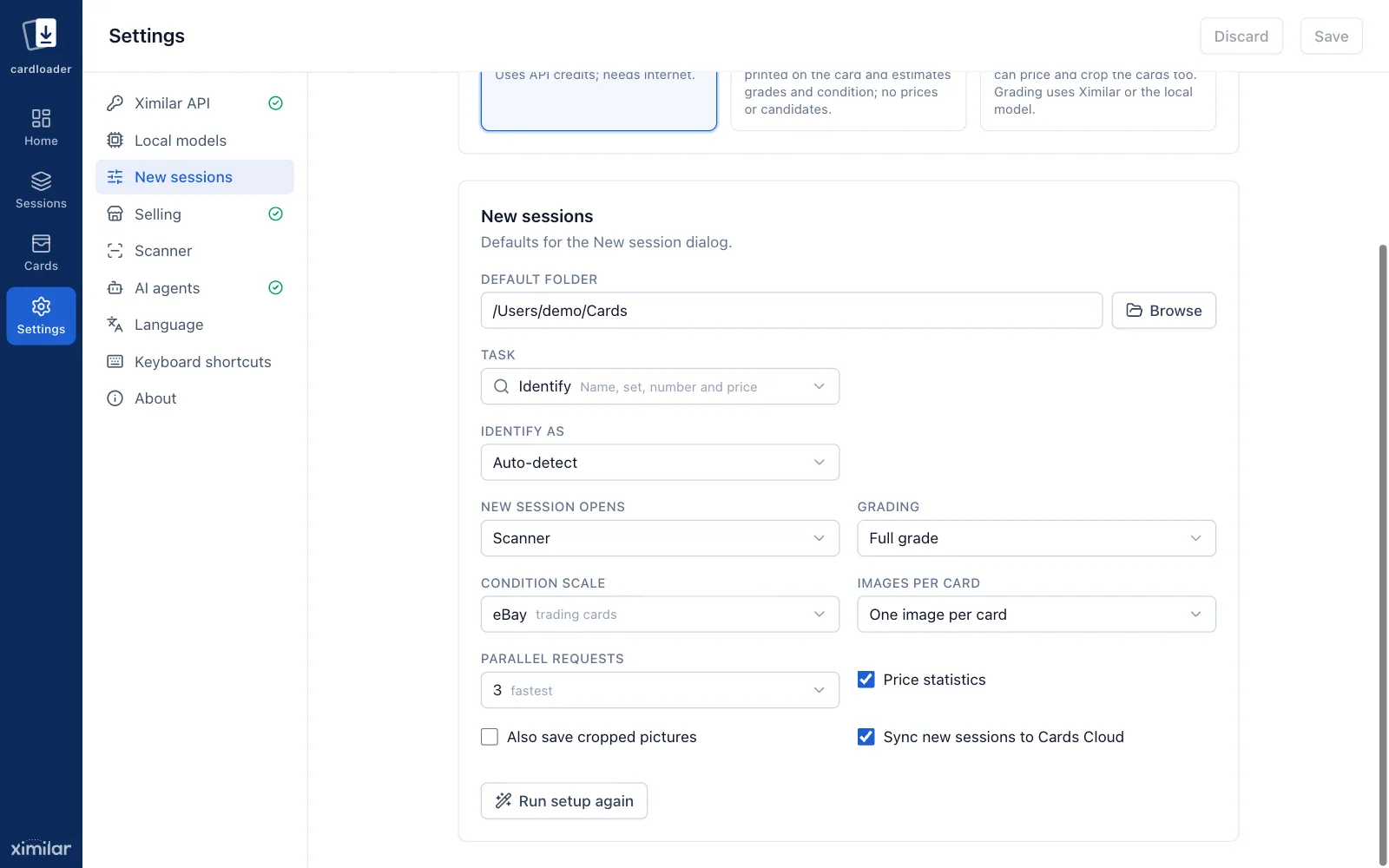
Below, set what the New session dialog starts with:
- Default folder: the folder a new session starts with.
- Task, Identify as (and the game), and which source New session opens with.
- Grading and its Condition scale; Images per card.
- Parallel requests: how many cards go to the Ximilar API at once.
- Price statistics, Also save cropped pictures and Sync new sessions to Cards Cloud.
Save, or run the setup again
Click Save at the top. A dot on Settings in the sidebar reminds you of changes you haven’t saved. Run setup again walks you through the first-run questions instead (getting started).
Related tutorials
Getting started with Cardloader
Install Cardloader and answer the setup questions: what to do with your cards, what you collect, how they come in and what identifies them. Then scan.
How to scan cards with the Ximilar API
Identify a folder of trading card pictures with the Ximilar API in Cardloader: name, set, number, a confidence for each match and market prices.
How to download a local AI model
Download a vision model that identifies cards on your computer, free and offline: choosing a model, accepting its license and running it on your GPU.
Start scanning your cards for free
Download Cardloader for Windows, macOS or Linux, point it at a folder or your scanner, and identify your first batch in minutes. No subscription and no account needed.