
 日本語
 Español
 한국어
 简体中文
 Português
 Français
 Deutsch
 Italiano
 ไทย
 العربية
 Polski
 Bahasa Indonesia
 Türkçe
 हिन्दी
 বাংলা
 Русский
 Tiếng Việt
 Nederlands
 Svenska
 Dansk
 Norsk
 Čeština
 עברית
 Filipino
 Bahasa Melayu
How to download a local AI model
Cardloader’s local models read cards on your own computer: no internet, no API calls, no fees. Each model is downloaded once from Hugging Face.
What you need
- Disk space and memory for the model: from under 1 GB for the smallest to several GB for the largest.
- A GPU helps a lot: Metal on Macs, Vulkan on Windows and Linux. The CPU works too, more slowly.
Choose a model
Open Settings › Local models and open the Model list. LFM2.5-VL 3B is the default. Smaller models are faster but read small print less reliably; Qwen3.5 4B and 9B read the whole card at once and, in a sports session, the number from the back.
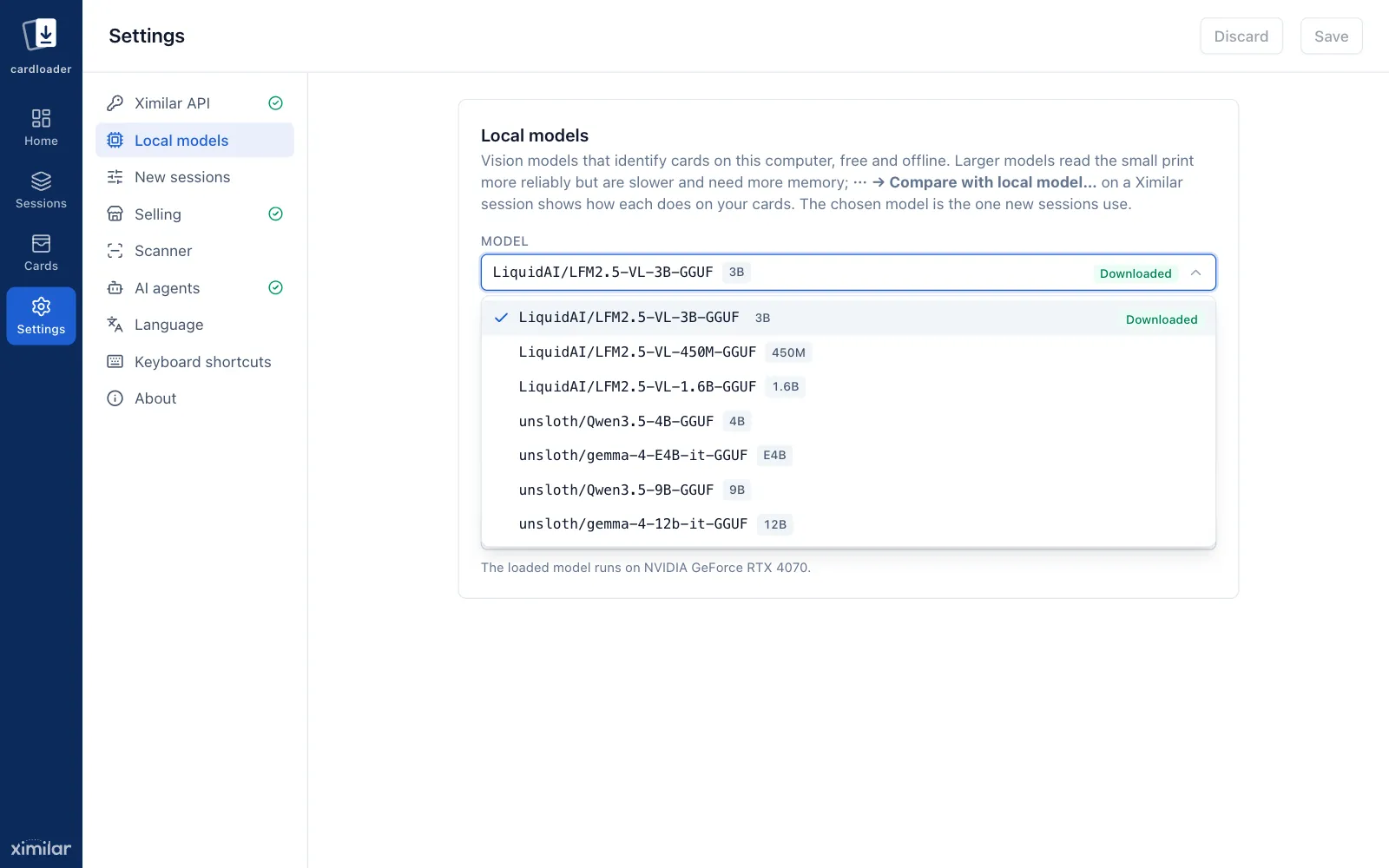
Accept its license
Each model shows its download size, the memory it needs and how it reads cards. Models come from their makers, not from Cardloader: read the license with Model page, then tick I accept ….
The LFM models’ license limits commercial use above a revenue threshold; Qwen3.5 and Gemma 4 are under the Apache 2.0 license.
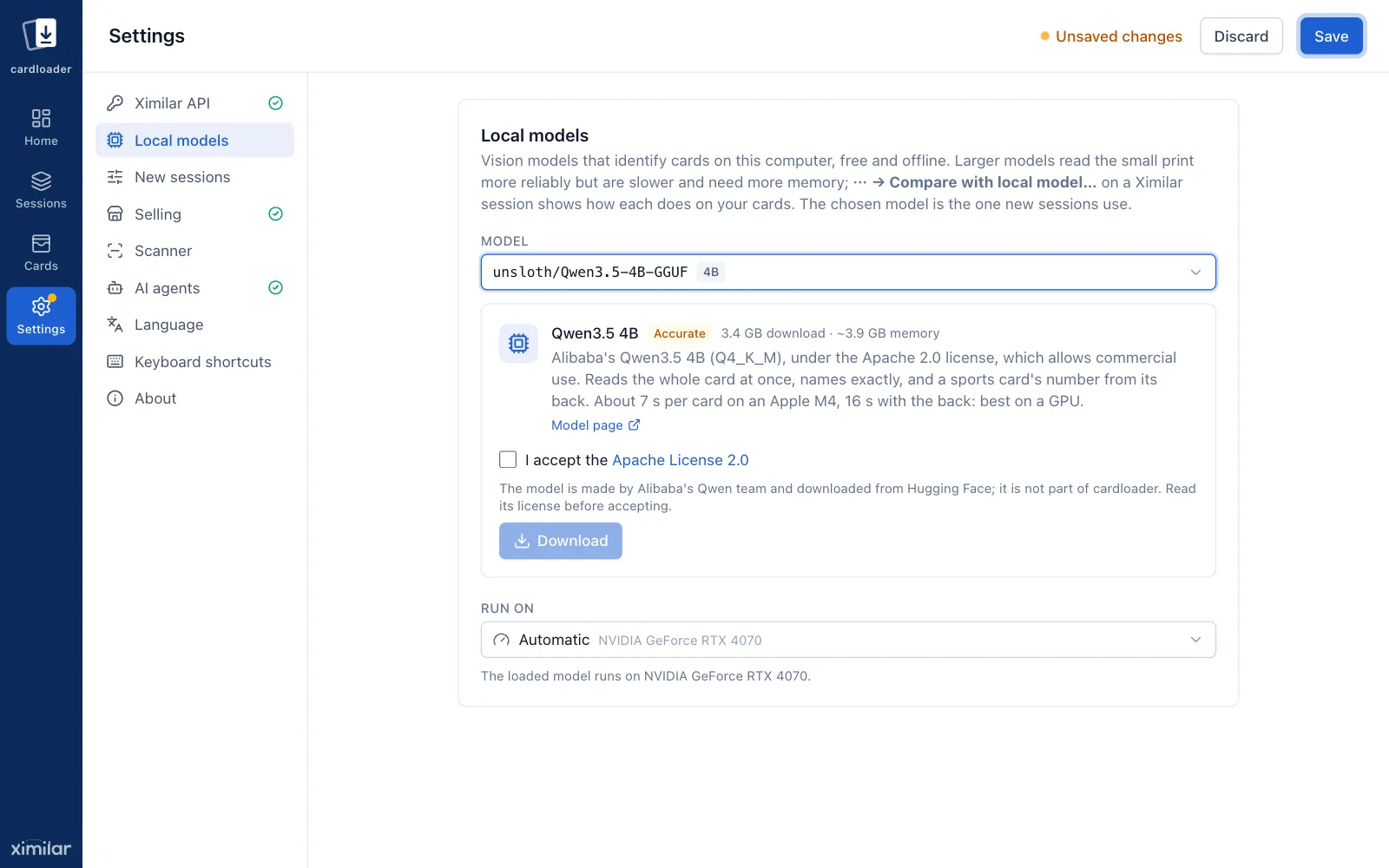
Download it and save
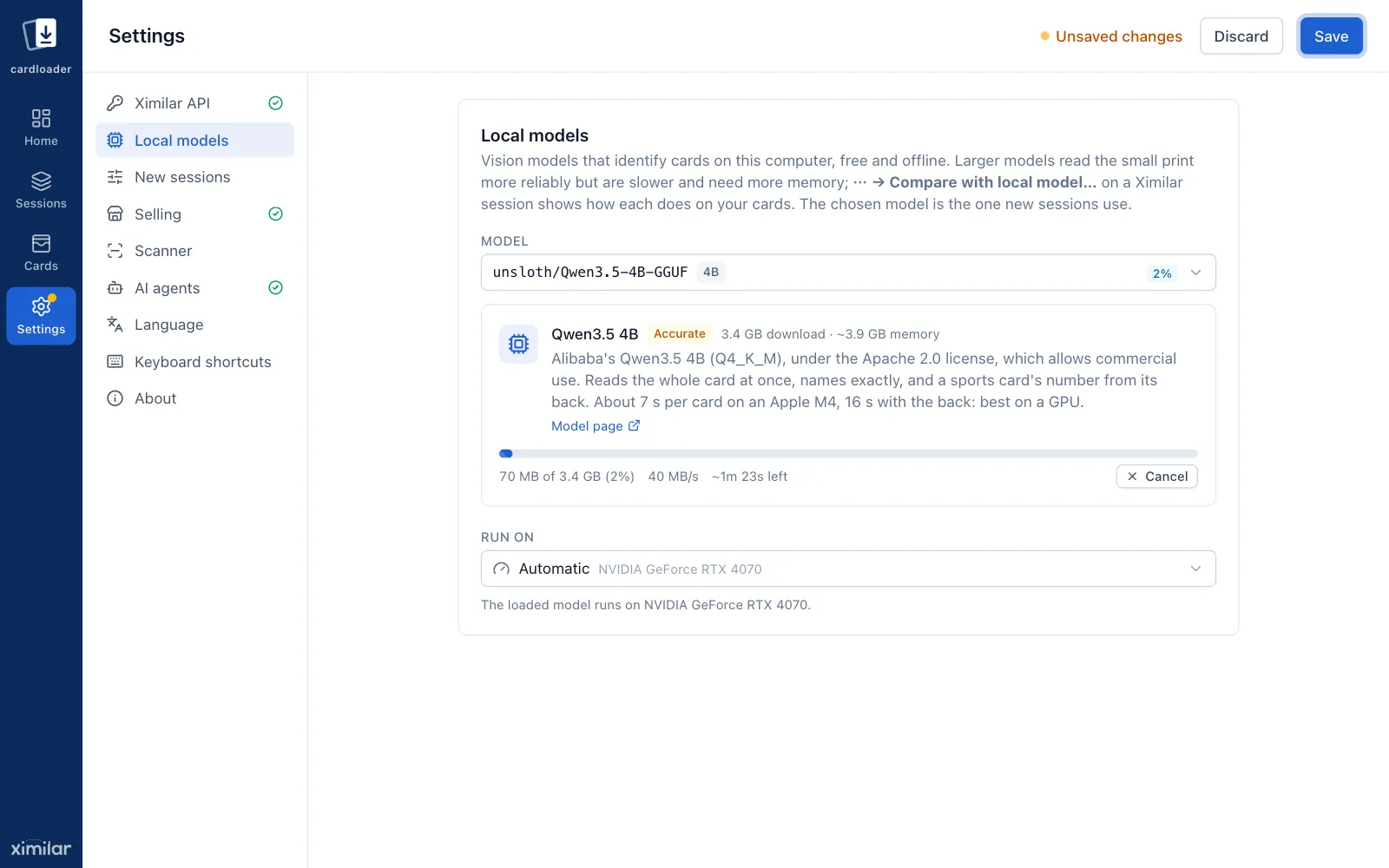
Click Download. The progress shows the size, speed and time left; Cancel stops it and a later Resume download goes on where it stopped. Click Save at the top: the chosen model is the one new sessions use.
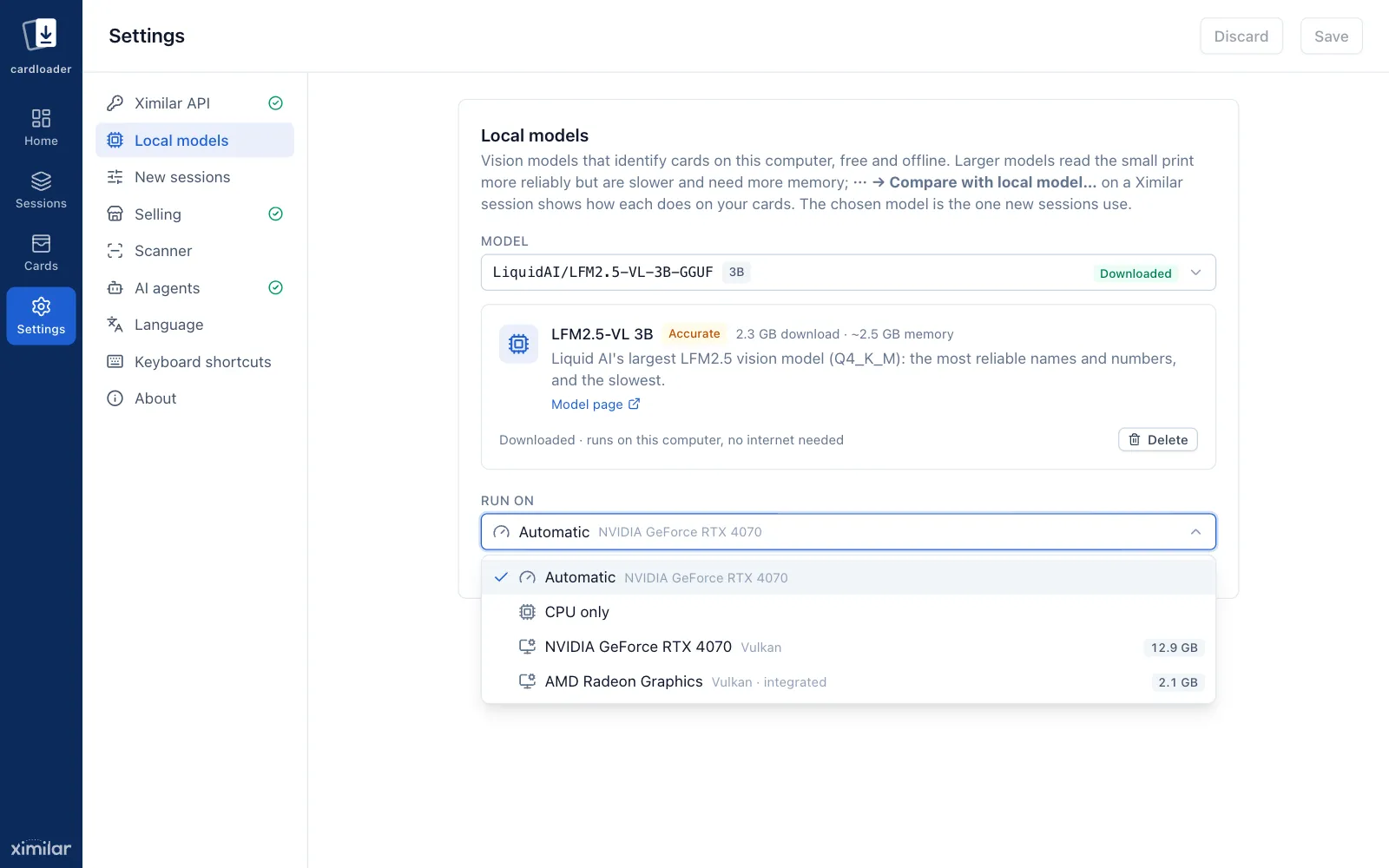
Choose where it runs
Run on is Automatic: the graphics card with the most free memory. Pick another GPU, or CPU only, if you need to. The line under it says where the loaded model runs now, and why if it had to fall back to the CPU.
Now identify cards with it: How to scan cards with a local AI model. To see how a model does on your own cards, compare it with the Ximilar API (comparing).
Related tutorials
How to scan cards with a local AI model
Identify trading and sports cards on your own computer with a local vision model: free, offline, no API calls. Names, numbers and years, step by step.
Using a local model to estimate the condition of trading cards
Let a local AI model tell each trading card’s condition, such as Near Mint or Lightly Played, on TCGplayer’s, Cardmarket’s or eBay’s scale, offline and free.
Comparing a local model with the Ximilar API
See how well a local AI model reads your own cards: Cardloader runs it on cards Ximilar identified and shows how often the names and numbers agree.
Start scanning your cards for free
Download Cardloader for Windows, macOS or Linux, point it at a folder or your scanner, and identify your first batch in minutes. No subscription and no account needed.