
 日本語
 Español
 한국어
 简体中文
 Português
 Français
 Deutsch
 Italiano
 ไทย
 العربية
 Polski
 Bahasa Indonesia
 Türkçe
 हिन्दी
 বাংলা
 Русский
 Tiếng Việt
 Nederlands
 Svenska
 Dansk
 Norsk
 Čeština
 עברית
 Filipino
 Bahasa Melayu
Comparing a local model with the Ximilar API
Before you trust a local model with a whole box, try it on cards you already have answers for. Cardloader runs the model on a session the Ximilar API identified and counts how often the two agree.
What you need
- A session identified by the Ximilar API (scanning with the Ximilar API).
- One or more downloaded local models (downloading a model).
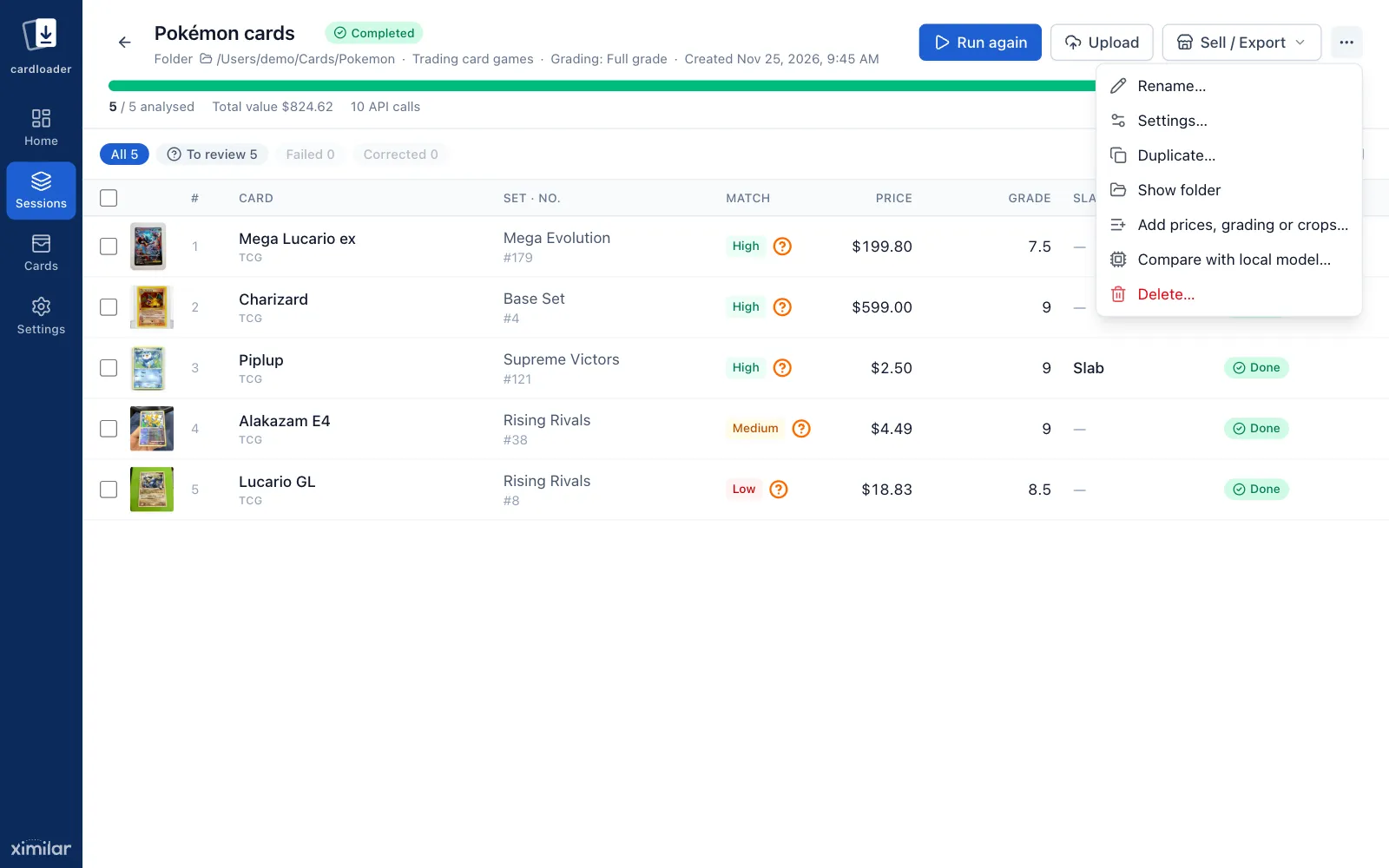
Open Compare with local model
Open the session and choose Compare with local model… in its ⋯ menu.
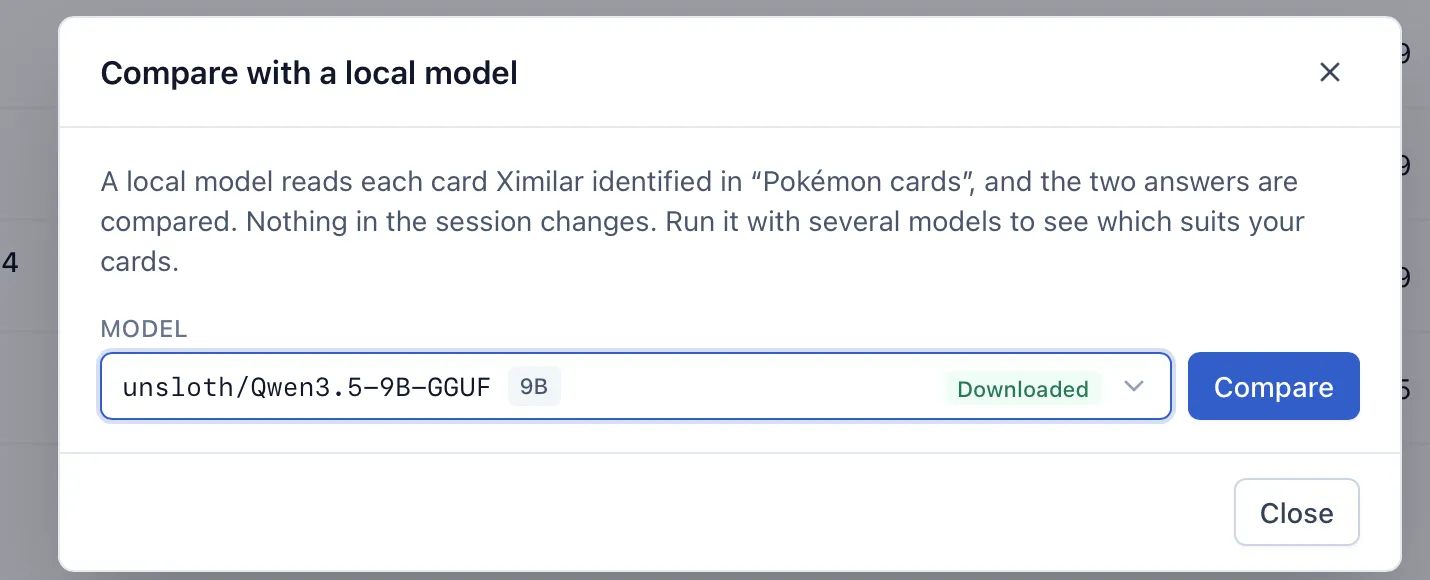
Pick a model and compare
Choose one of your downloaded models under Model and click Compare. Nothing in the session changes: the comparison only reads the cards.
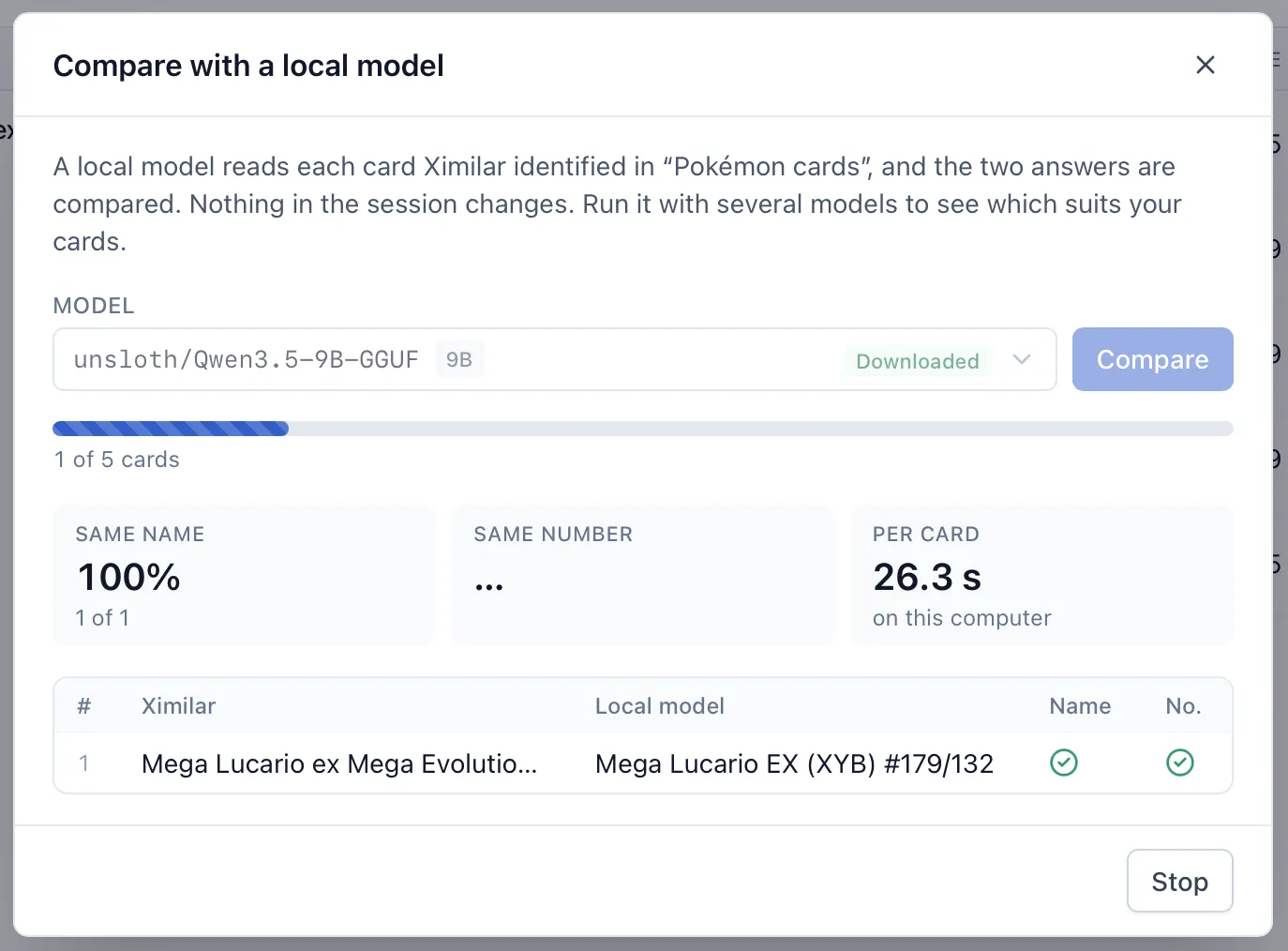
Watch it go through the cards
The model reads the cards one by one. Each row shows Ximilar’s answer next to the model’s, with a tick where the name and the number agree, and the time a card takes on this computer.
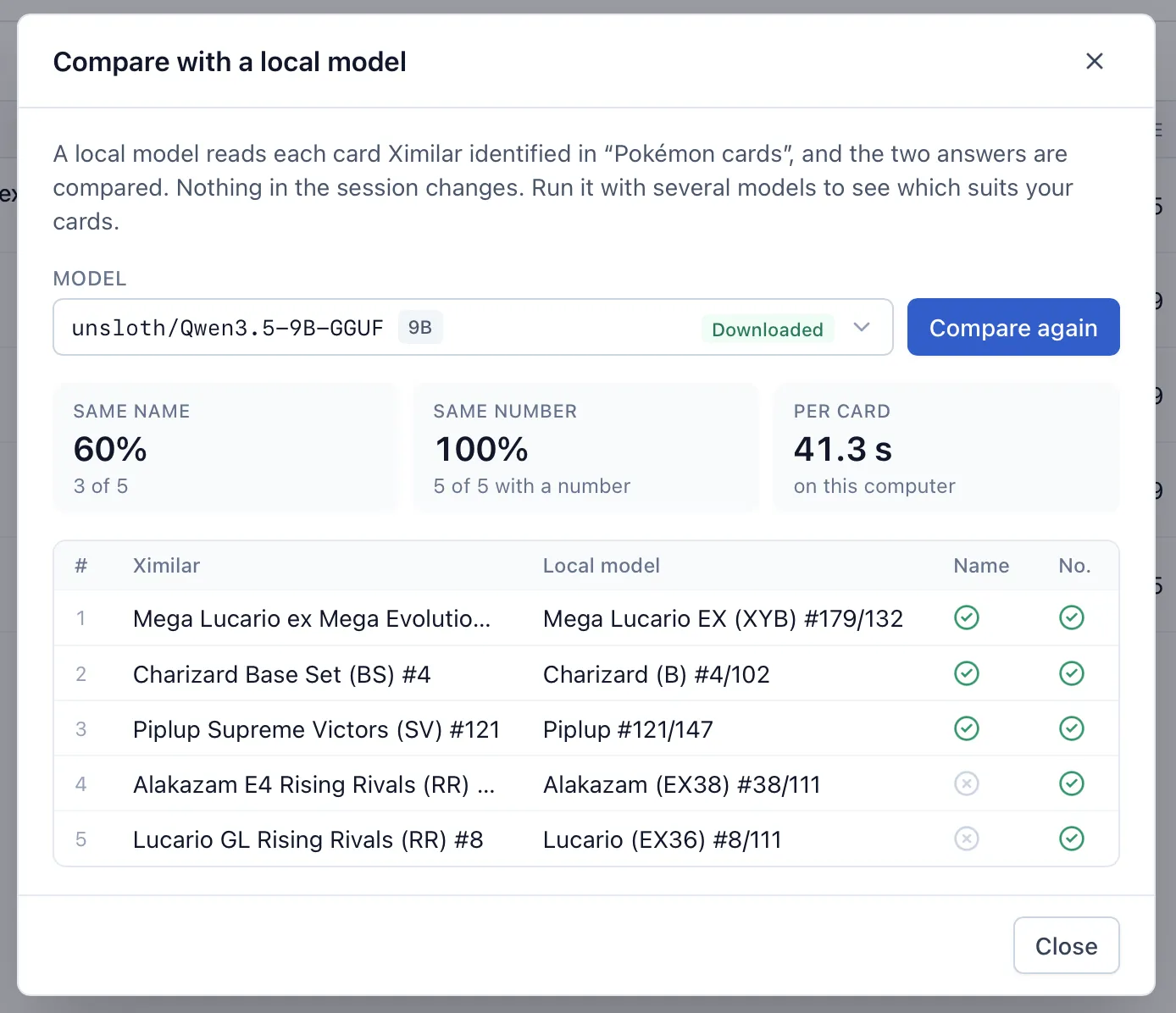
Read the result
Same name and Same number say how often the model agreed with Ximilar, and Per card how long it took. Here Qwen3.5 9B read all five numbers and three of the five names: it wrote “Alakazam” for Alakazam E4 and “Lucario” for Lucario GL.
Click Compare again with another model to see which suits your cards: the smaller ones are faster, the larger ones read small print better.
Related tutorials
How to download a local AI model
Download a vision model that identifies cards on your computer, free and offline: choosing a model, accepting its license and running it on your GPU.
How to scan cards with a local AI model
Identify trading and sports cards on your own computer with a local vision model: free, offline, no API calls. Names, numbers and years, step by step.
How to scan cards with the Ximilar API
Identify a folder of trading card pictures with the Ximilar API in Cardloader: name, set, number, a confidence for each match and market prices.
Start scanning your cards for free
Download Cardloader for Windows, macOS or Linux, point it at a folder or your scanner, and identify your first batch in minutes. No subscription and no account needed.