
 日本語
 Español
 한국어
 简体中文
 Português
 Français
 Deutsch
 Italiano
 ไทย
 العربية
 Polski
 Bahasa Indonesia
 Türkçe
 हिन्दी
 বাংলা
 Русский
 Tiếng Việt
 Nederlands
 Svenska
 Dansk
 Norsk
 Čeština
 עברית
 Filipino
 Bahasa Melayu
How to scan cards with a local AI model
A local model reads what is printed on each card (the name, the collector number, the year) on your own computer. It is free and works offline; it gives no prices or other candidates, so check its answers as you review.
What you need
- A downloaded local model (How to download a local AI model). The pictures below were made with Qwen3.5 4B.
- A folder with pictures of your cards.
Choose the local model in a new session
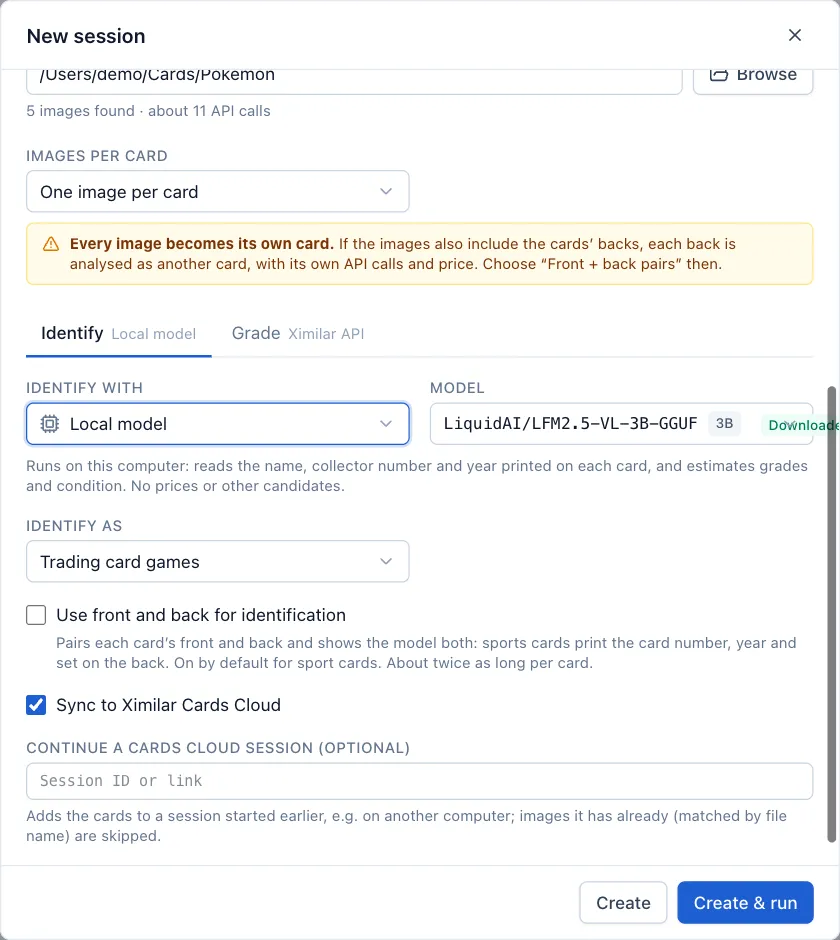
Click New session, choose Folder and your folder. In the Identify tab set Identify with to Local model and pick the Model.
Set Identify as to Trading card games, Sports cards or Comics: the model then only answers with games of that kind. For sports cards, Use front and back for identification is on, as the number and year are printed on the back.
Prices need another source with the local model: tick Prices and take them from eBay’s listings (eBay and the local model).
Run it
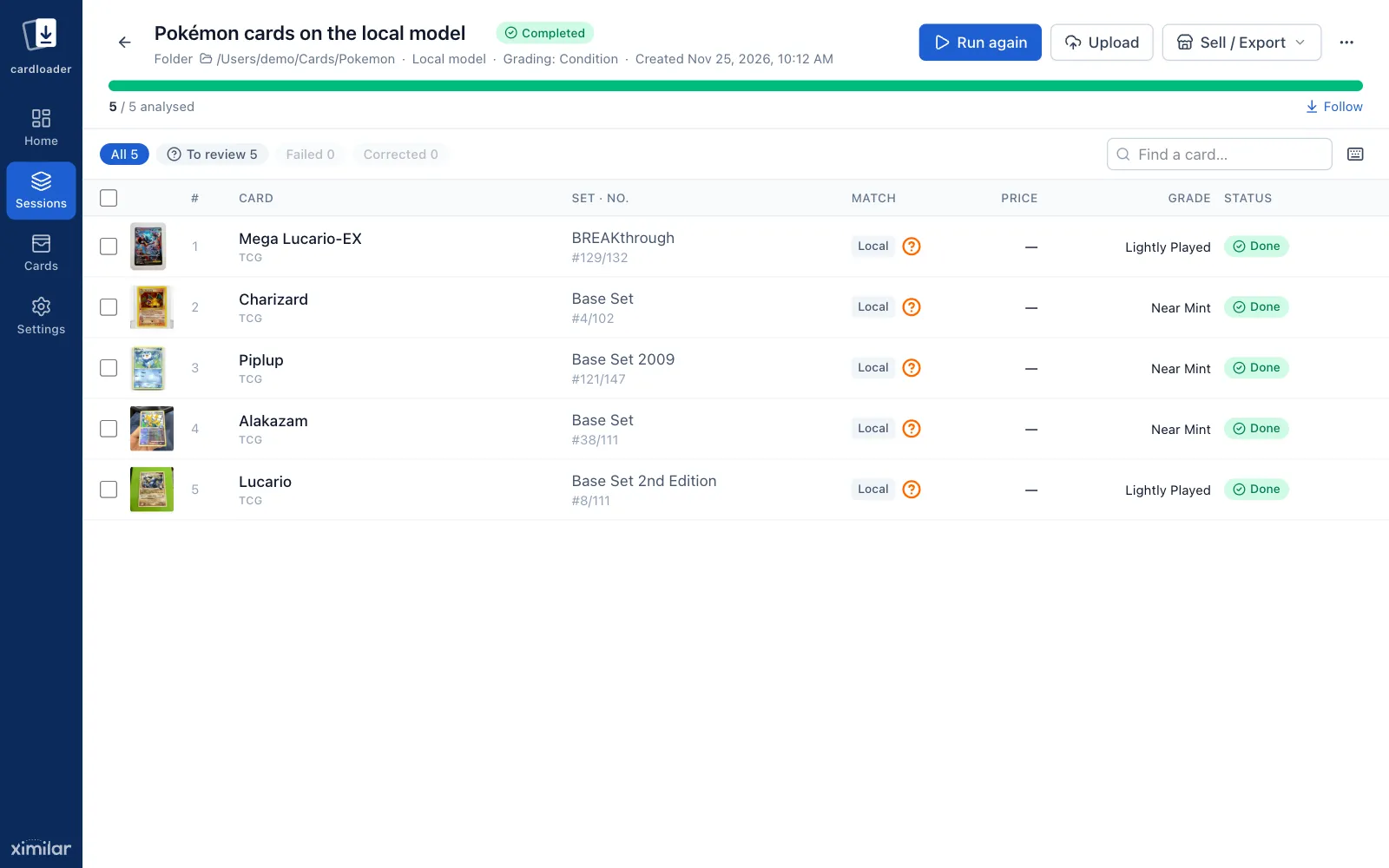
Click Create & run. The model works on one card at a time; on a recent computer with a GPU a card takes a few seconds. Rows show a Local tag where Ximilar’s results show their confidence.
Check each card
Open a card to compare the picture with what the model read. Names and numbers are usually right; set names are the model’s guess and worth checking. Fix what’s wrong with Edit (E), then Accept (A).
Under the name, the card shows which model read it and how long it took.
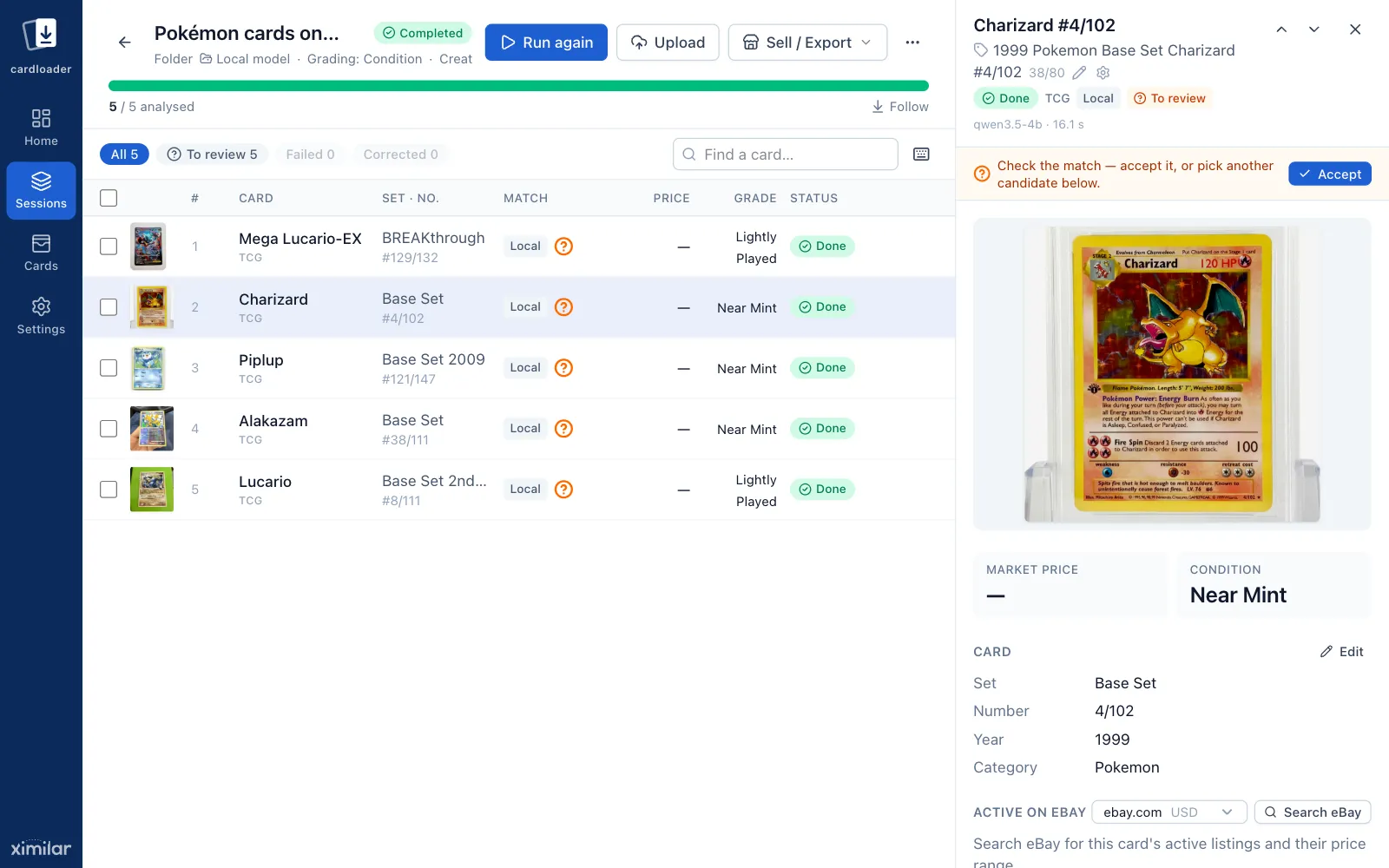
In this session the model read all five names and four of the five numbers right, and guessed some set names (“Base Set 2009” for a 2009 Supreme Victors card). For exact sets, other candidates and prices, use the Ximilar API (scanning with the Ximilar API), or compare the two on your own cards (comparing).
Related tutorials
How to download a local AI model
Download a vision model that identifies cards on your computer, free and offline: choosing a model, accepting its license and running it on your GPU.
Using a local model to estimate the condition of trading cards
Let a local AI model tell each trading card’s condition, such as Near Mint or Lightly Played, on TCGplayer’s, Cardmarket’s or eBay’s scale, offline and free.
Comparing a local model with the Ximilar API
See how well a local AI model reads your own cards: Cardloader runs it on cards Ximilar identified and shows how often the names and numbers agree.
Start scanning your cards for free
Download Cardloader for Windows, macOS or Linux, point it at a folder or your scanner, and identify your first batch in minutes. No subscription and no account needed.