
 日本語
 Español
 한국어
 简体中文
 Português
 Français
 Deutsch
 Italiano
 ไทย
 العربية
 Polski
 Bahasa Indonesia
 Türkçe
 हिन्दी
 বাংলা
 Русский
 Tiếng Việt
 Nederlands
 Svenska
 Dansk
 Norsk
 Čeština
 עברית
 Filipino
 Bahasa Melayu
Using a local model to estimate the condition of trading cards
For listings you often need a condition, not a grade. A local model can look at each card and give one on the scale of the marketplace you sell on, without any API call.
What you need
- A downloaded local model (How to download a local AI model).
Ask for the condition
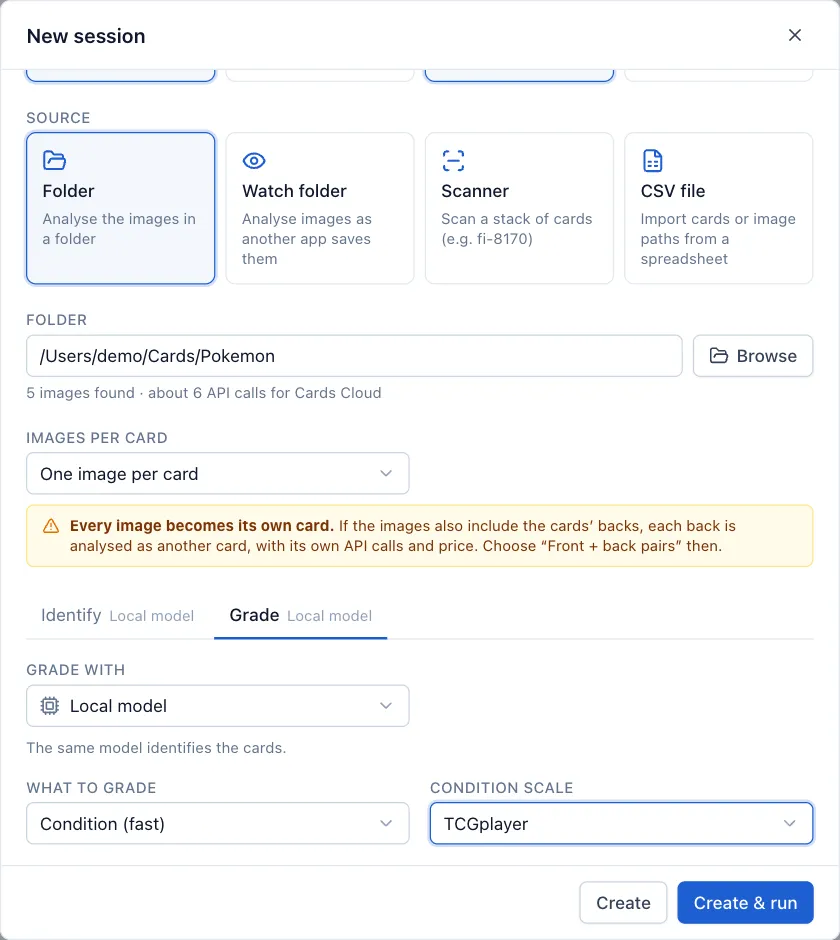
In New session, tick Grade under What to do. In the Grade tab set Grade with to Local model and What to grade to Condition (fast).
Choose the Condition scale of the marketplace you sell on: TCGplayer, Cardmarket, or eBay (trading cards). Exports read the condition on that scale: “Light Played” on Cardmarket isn’t the same step as on TCGplayer.
Without Identify, the session only tells each card’s condition and never names the cards.
Run the session
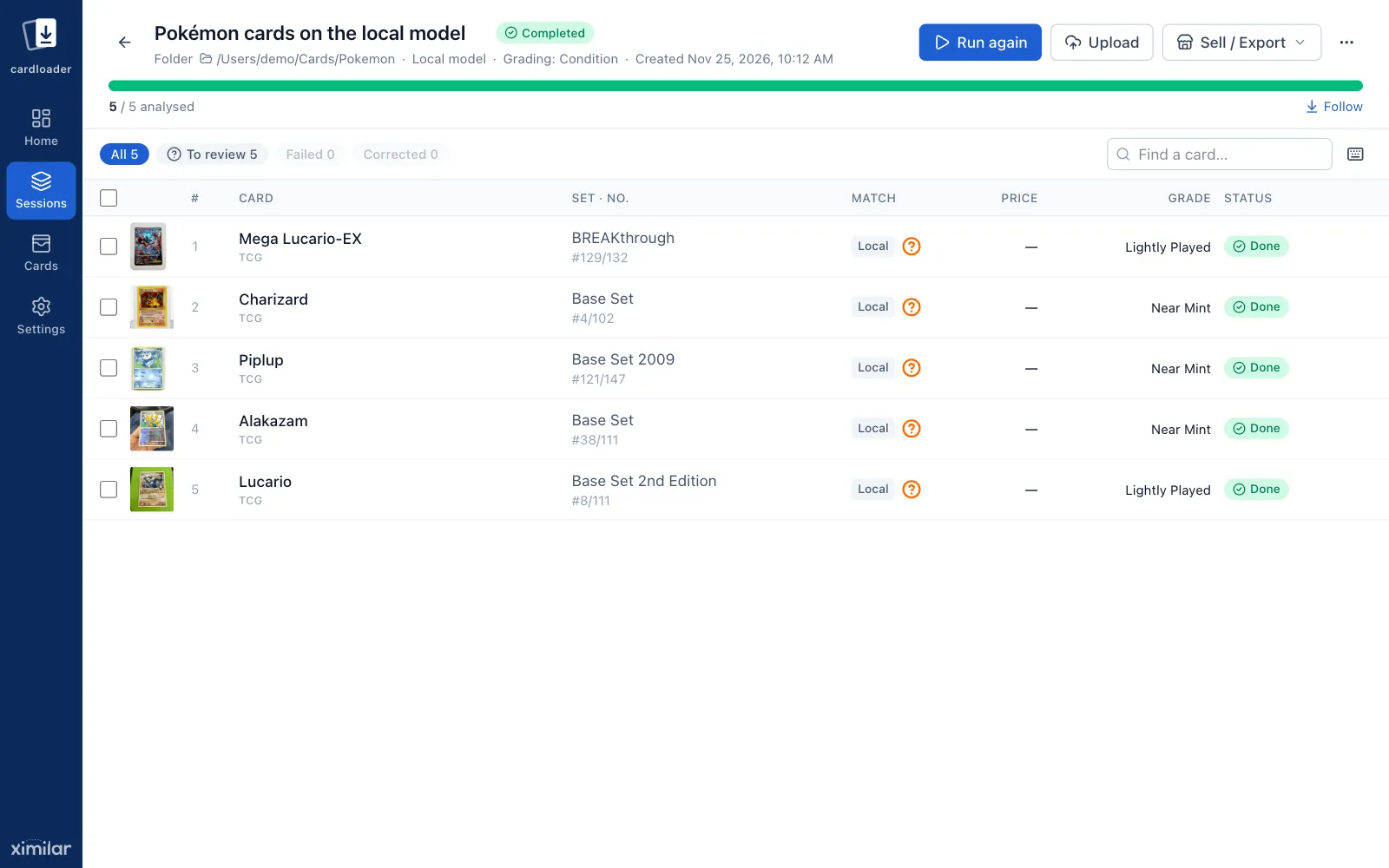
Click Create & run. After the model reads a card, it looks at its condition: the Grade column shows Near Mint, Lightly Played and so on.
Check the condition on the card
Open a card: Condition sits next to the market price. Change it with Edit if you see it differently; marketplace exports also let you set the condition of all ungraded cards at once.
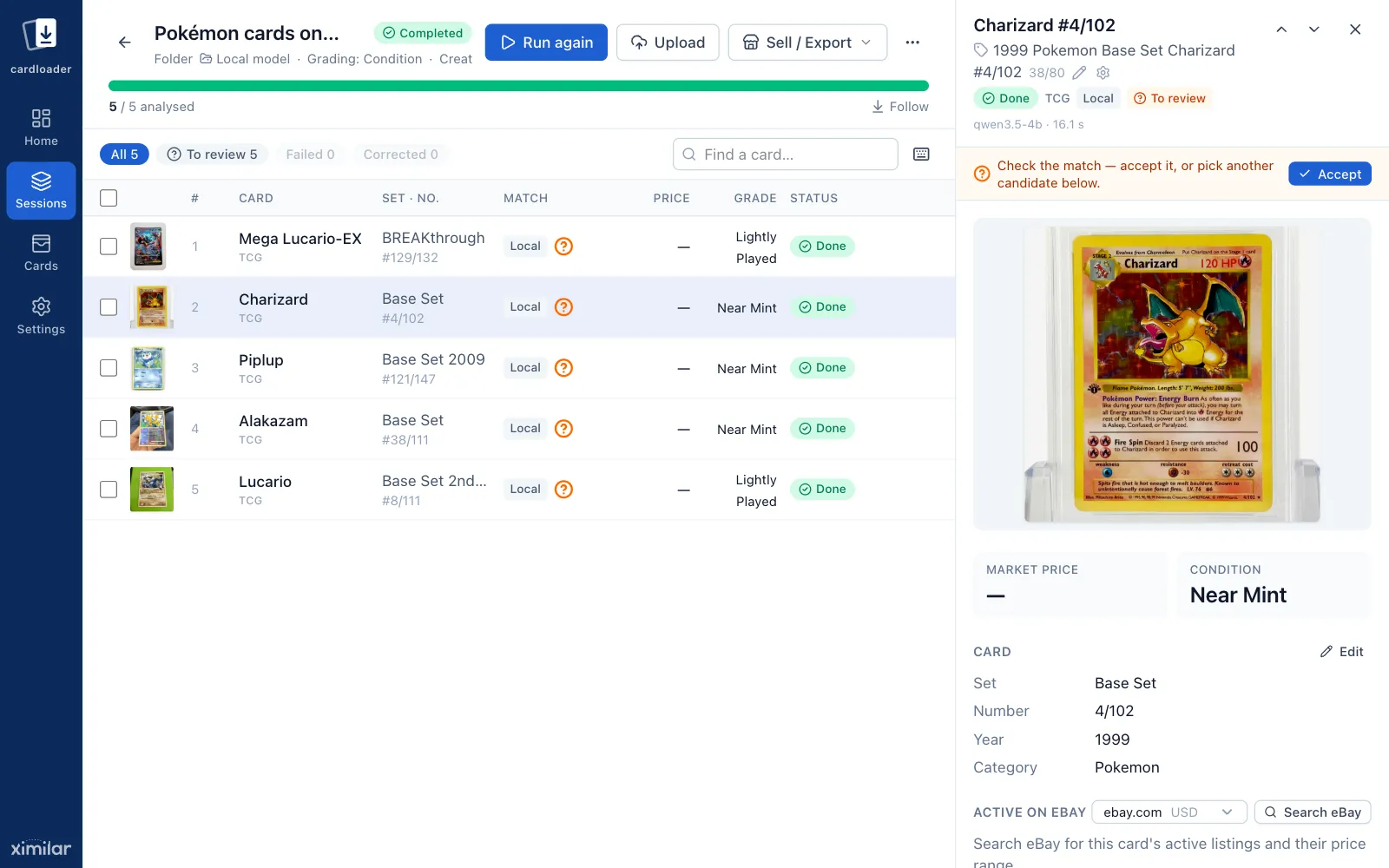
The condition is a small model’s estimate from one picture, not a grader’s. Look closely at valuable cards, or grade them with the Ximilar API (grading with Ximilar).
Related tutorials
Using a local model for grading sports cards
Get rough grades of sports cards from a model on your computer: corners, edges, surface and centering of front and back, offline, with no API calls.
How to grade cards with the Ximilar API
Grade trading and sports cards in Cardloader with Ximilar’s card grader: corners, edges, surface and centering for each side, with the overlays it drew.
How to export your cards for TCGplayer
Turn a session of trading cards into a list for TCGplayer’s Seller Portal: product line, set, name, number, condition, your price and the product link.
Start scanning your cards for free
Download Cardloader for Windows, macOS or Linux, point it at a folder or your scanner, and identify your first batch in minutes. No subscription and no account needed.