
 日本語
 Español
 한국어
 简体中文
 Português
 Français
 Deutsch
 Italiano
 ไทย
 العربية
 Polski
 Bahasa Indonesia
 Türkçe
 हिन्दी
 বাংলা
 Русский
 Tiếng Việt
 Nederlands
 Svenska
 Dansk
 Norsk
 Čeština
 עברית
 Filipino
 Bahasa Melayu
Configuring Cardloader’s MCP server for AI agents
Cardloader has an MCP server built in. AI apps such as Claude Desktop or Claude Code use it to start sessions, read cards and their pictures, identify, price and crop cards, and review them, on your computer only.
What you need
- An AI app that speaks MCP: Claude Desktop, Claude Code, OpenAI Codex, Cursor, Gemini CLI, LM Studio or another one.
- Cardloader open while the agent works: the agent talks to the running app.
Turn on AI agents
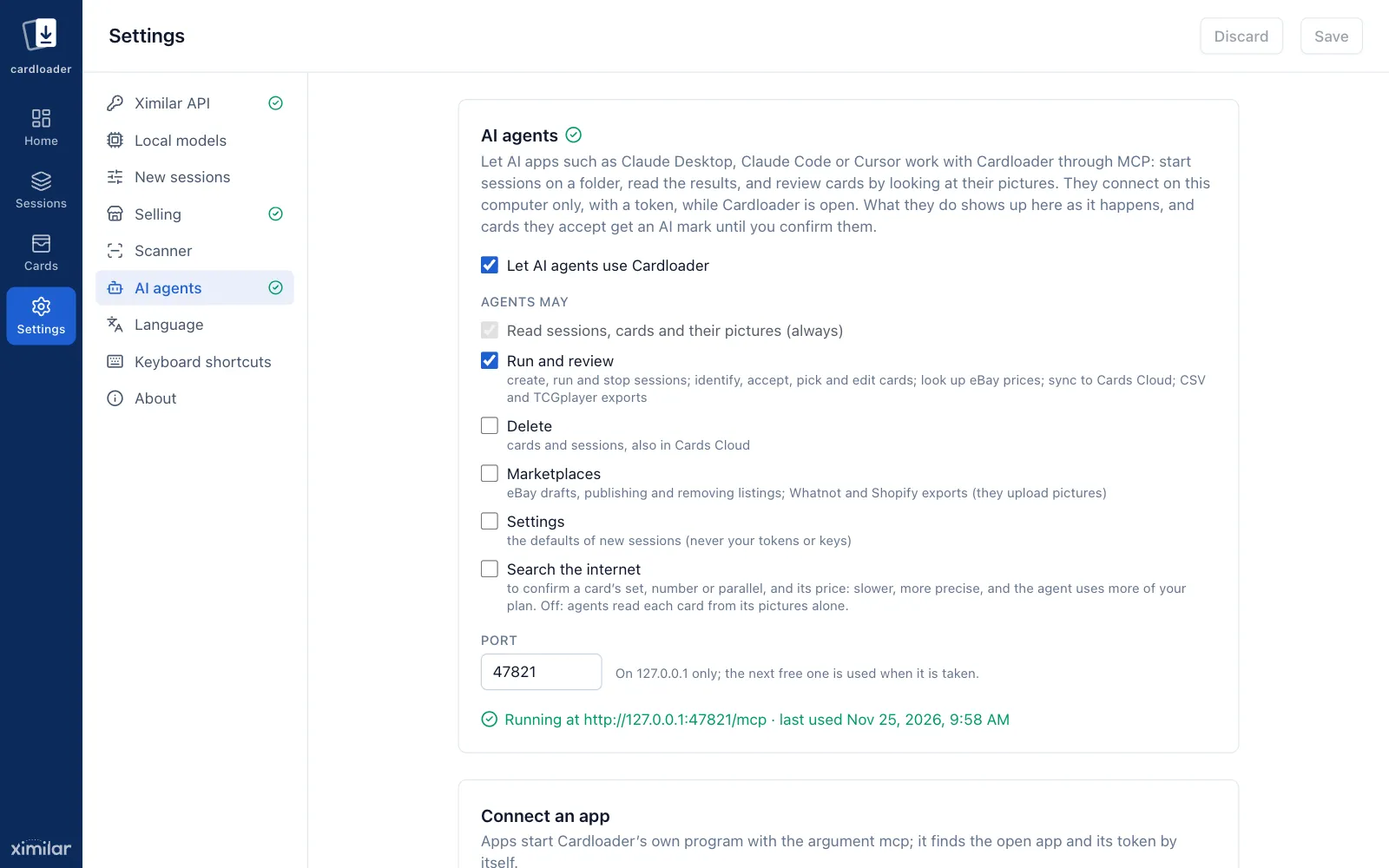
Open Settings › AI agents and tick Let AI agents use Cardloader. Under Agents may, choose what they are allowed to do. Reading sessions, cards and pictures is always allowed; the rest you tick:
- Run and review: create, run and stop sessions, identify, accept, pick and edit cards, look up eBay prices, CSV exports. Needed for an agent to identify cards.
- Delete: cards and sessions.
- Marketplaces: eBay drafts, publishing and removing listings, Whatnot and Shopify exports.
- Settings: the defaults of new sessions, never your tokens or keys.
- Search the internet: tells the agent it may check a card’s set, number and price on the web. Off, it reads each card from its pictures alone.
The server listens on 127.0.0.1 only, so nothing outside your computer can reach it, and every request needs a token. Click Save to start it.
Connect Claude Desktop
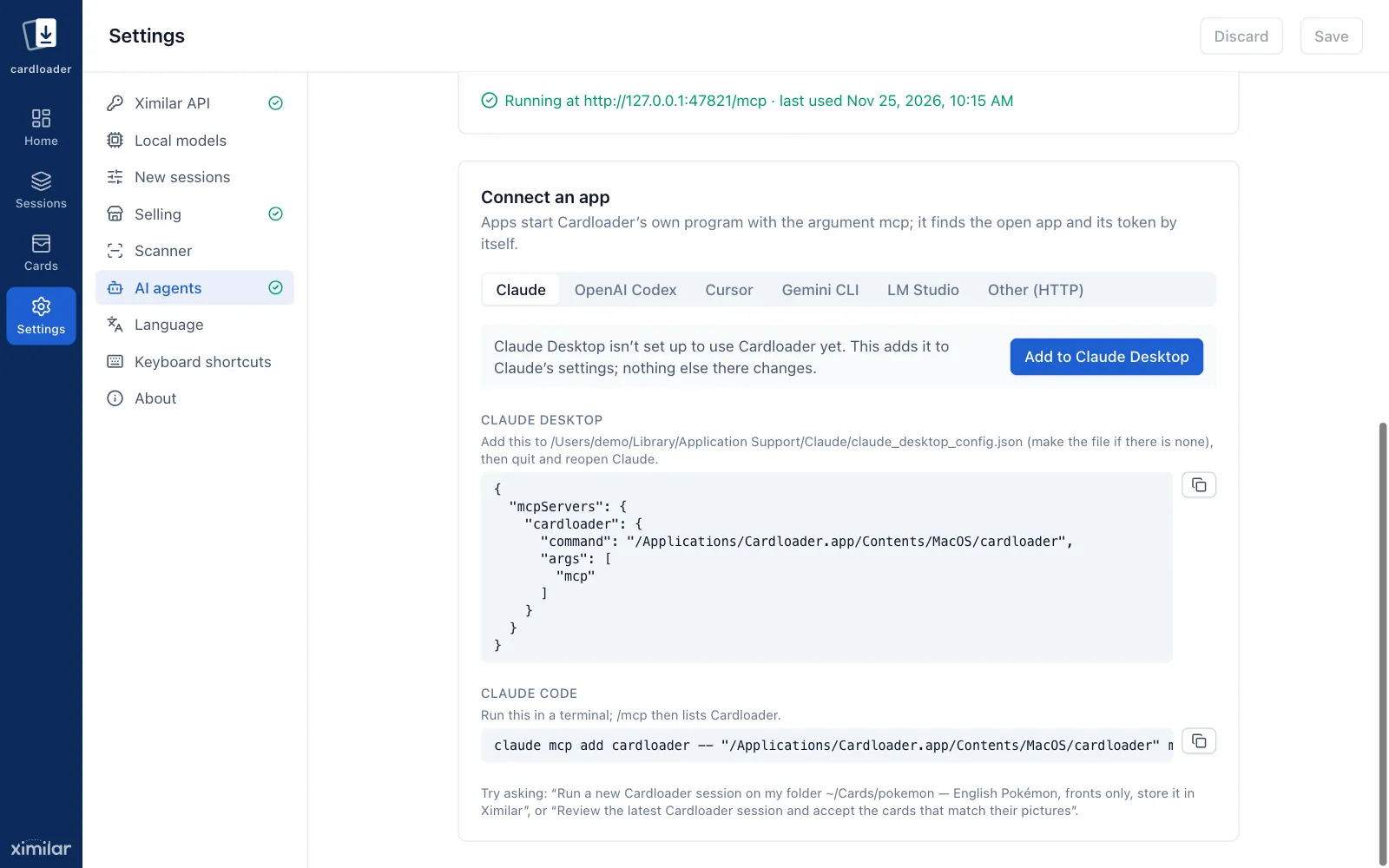
Under Connect an app, on the Claude tab, click Add to Claude Desktop. Cardloader adds itself to Claude Desktop’s configuration and changes nothing else there. Quit Claude Desktop and open it again: Cardloader shows among its connectors.
Or connect another app
Claude Code: run the claude mcp add cardloader … command shown under the Claude tab in a terminal; /mcp then lists Cardloader.
The OpenAI Codex, Cursor, Gemini CLI and LM Studio tabs show what to add to each app’s settings. Apps start Cardloader’s own program with the argument mcp, which finds the open app and its token by itself. Other (HTTP) gives the address and the token header for apps that connect over HTTP.
Ask your agent
Try: “Run a new Cardloader session on my folder ~/Cards/pokemon, English Pokémon, fronts only”, or “Review the latest Cardloader session and accept the cards that match their pictures”. What agents do shows up in Cardloader as it happens, and cards they accept carry an AI mark until you confirm them.
An agent can also be the engine itself: How to scan cards with an AI agent.
Related tutorials
How to identify cards with an AI agent such as Claude
Let Claude or another AI agent identify your cards: Cardloader hands it each card’s pictures over MCP, and the agent answers with the name, set and number.
How to price cards with an AI agent
Let Claude or another AI agent price your cards in Cardloader: it looks at each identified card, checks what it sells for and answers with a price and a note.
How to review identified cards
Check every match Cardloader found: accept it, pick another candidate or fix the card, with keyboard shortcuts that make a whole box quick to review.
Start scanning your cards for free
Download Cardloader for Windows, macOS or Linux, point it at a folder or your scanner, and identify your first batch in minutes. No subscription and no account needed.