
 日本語
 Español
 한국어
 简体中文
 Português
 Français
 Deutsch
 Italiano
 ไทย
 العربية
 Polski
 Bahasa Indonesia
 Türkçe
 हिन्दी
 বাংলা
 Русский
 Tiếng Việt
 Nederlands
 Svenska
 Dansk
 Norsk
 Čeština
 עברית
 Filipino
 Bahasa Melayu
How to review identified cards
Every identified card waits for your review, however sure the match is. Reviewing a box takes a few keystrokes per card: look, accept, next.
What you need
- A session with identified cards (scanning with the Ximilar API or any other engine).
Show the cards to review
Open the session and click the To review filter above the table. It lists the cards you haven’t accepted yet. Click the first one to open it on the right.
The Match column says how sure the match is: High, Medium or Low. Look harder at the medium and low ones; click the Match header to sort by it.
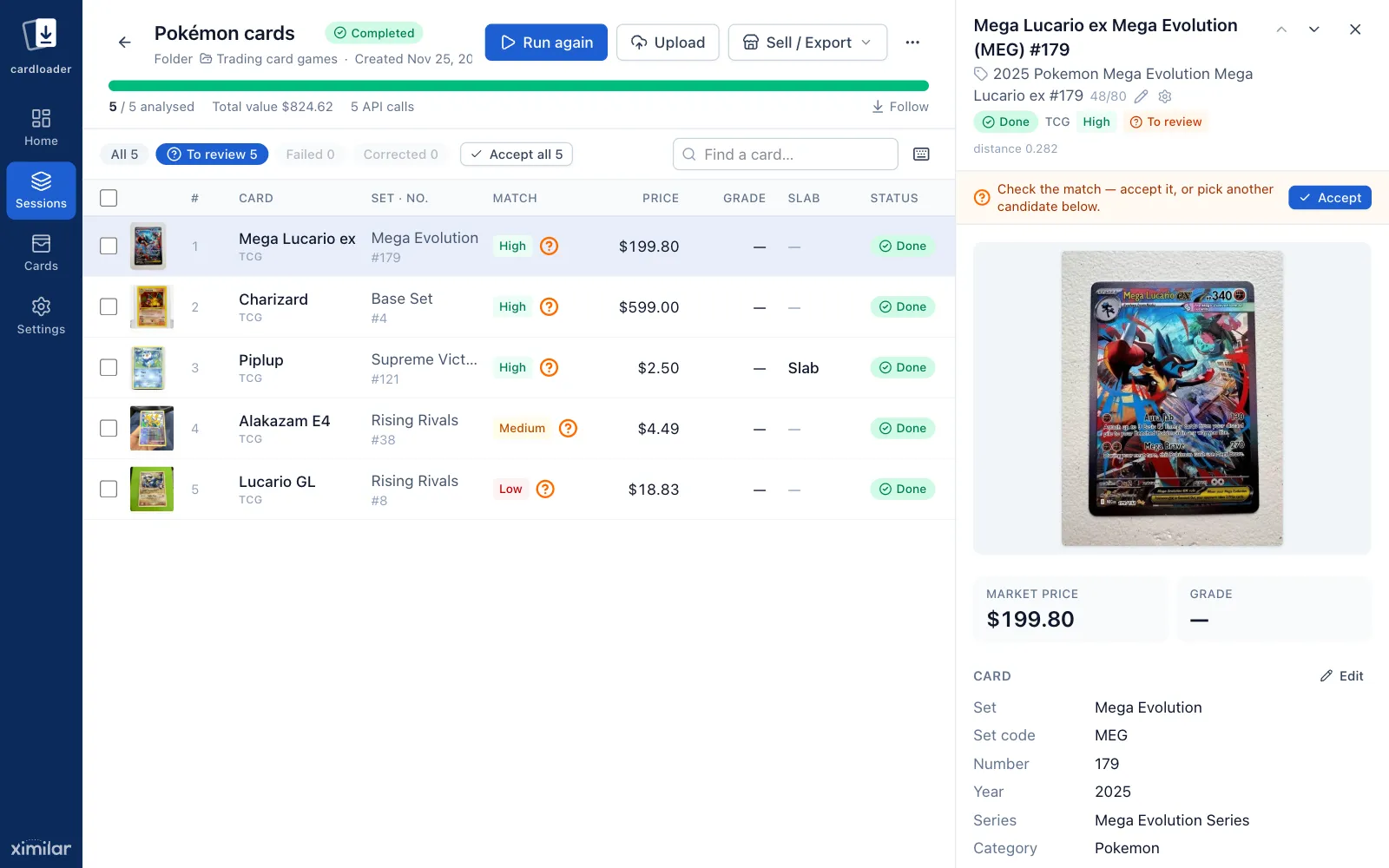
Accept the match, or pick another candidate
If the picture and the match agree, click Accept or press A. Cardloader moves on to the next card.
If the match is wrong, scroll down the card to Other candidates and click Select on the right one, or press its number, 1 to 9. Picking a candidate also accepts the card, and the card takes that candidate’s name, set and number.
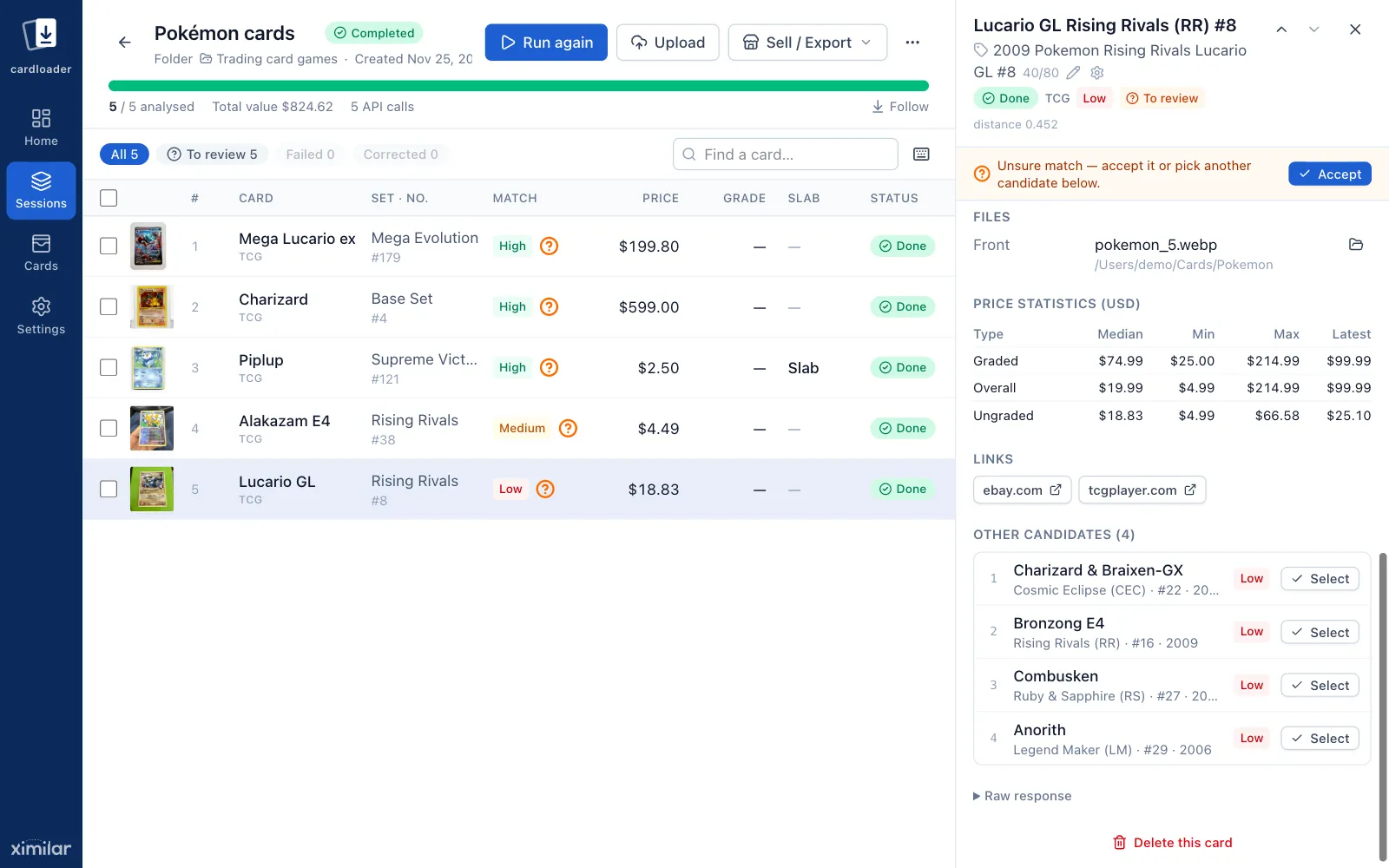
Fix what no candidate has
When none of the candidates is the card, click Edit next to Card (or press E) and type the name, set, number, year or price yourself. Saving an edit accepts the card too (editing cards).
Accept many cards at once
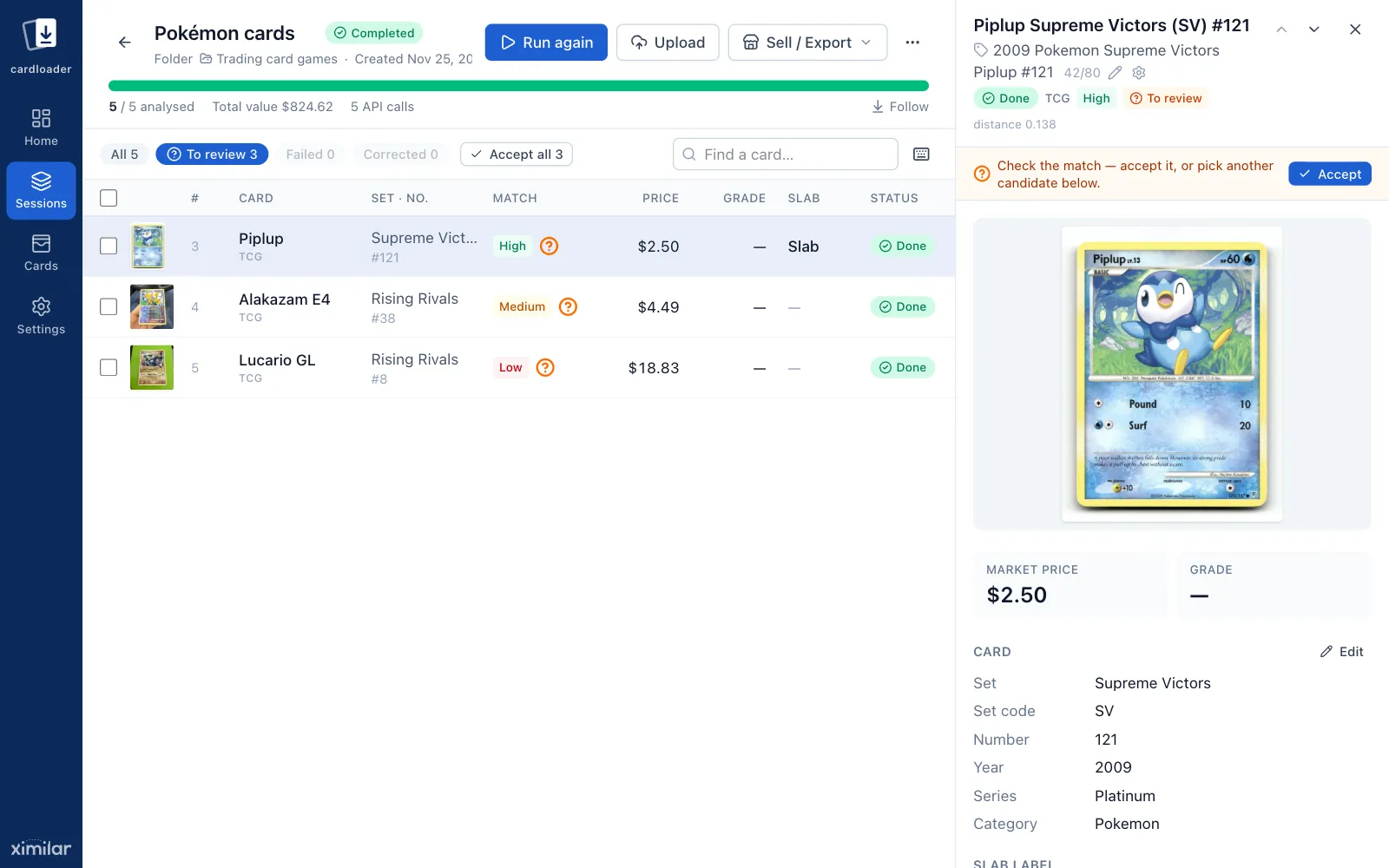
Accepted cards leave the To review list. When the rest look right, Accept all next to the filters accepts every card the filter shows. To accept only some, tick their rows (Shift + click selects a range) and click Accept in the bar that appears.
Made a mistake? Press A again on an accepted card, or click Unaccept.
The Corrected filter lists the cards you picked another candidate for or edited. Cards an AI agent identified show under By AI and are confirmed with Confirm: an agent’s review never replaces yours (AI agents).
Related tutorials
Keyboard shortcuts
Cardloader’s keyboard shortcuts: move between cards, accept matches, pick candidates, edit and enlarge pictures without touching the mouse.
How to edit cards, one or many at once
Fix a card’s name, set, number or price, add team, serial or features, and add the same text to many cards’ titles or fields at once, with a preview.
How to scan cards with the Ximilar API
Identify a folder of trading card pictures with the Ximilar API in Cardloader: name, set, number, a confidence for each match and market prices.
Start scanning your cards for free
Download Cardloader for Windows, macOS or Linux, point it at a folder or your scanner, and identify your first batch in minutes. No subscription and no account needed.