
 日本語
 Español
 한국어
 简体中文
 Português
 Français
 Deutsch
 Italiano
 ไทย
 العربية
 Polski
 Bahasa Indonesia
 Türkçe
 हिन्दी
 বাংলা
 Русский
 Tiếng Việt
 Nederlands
 Svenska
 Dansk
 Norsk
 Čeština
 עברית
 Filipino
 Bahasa Melayu
Keyboard shortcuts
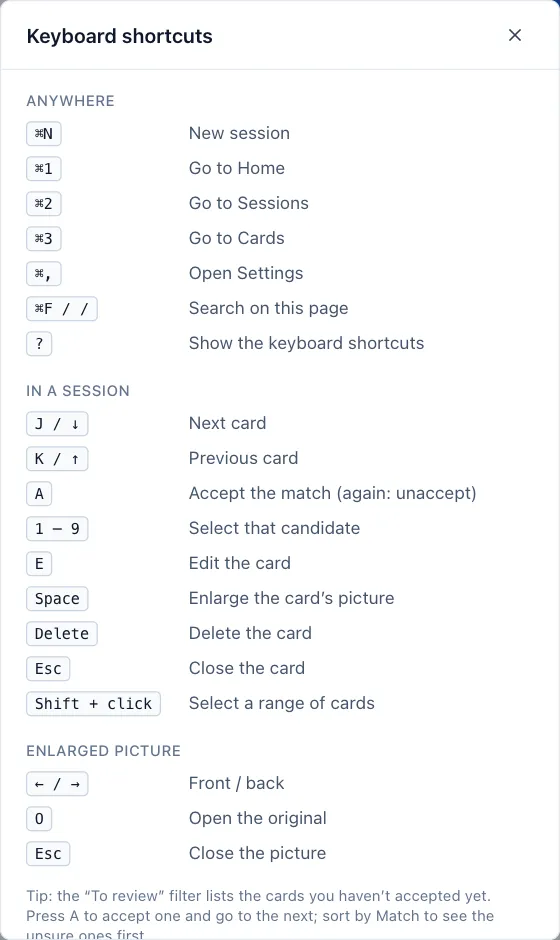
Most of reviewing a session can be done from the keyboard. Press ? anywhere in the app to see the list.
What you need
- Cardloader. On Windows and Linux, read ⌘ as Ctrl.
Show the list
Press ?, or open Settings › Keyboard shortcuts.
- Anywhere: ⌘ + N new session; ⌘ + 1, 2, 3 Home, Sessions, Cards; ⌘ + , Settings; ⌘ + F or / search on the page.
- In a session: J/↓ next card, K/↑ previous; A accept (again: unaccept); 1–9 select that candidate; E edit; Space enlarge the picture; Delete delete the card; Esc close it; Shift + click selects a range.
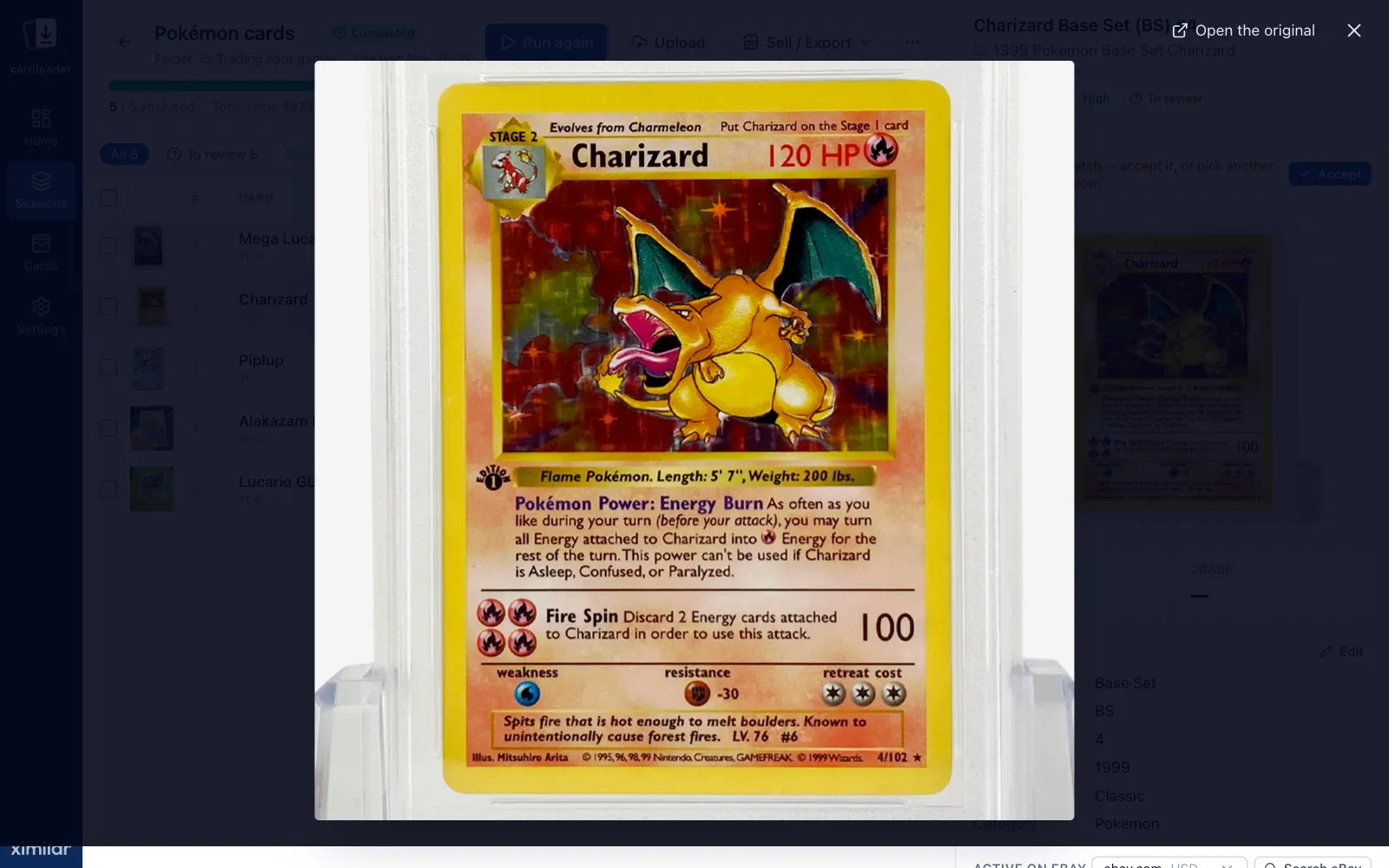
Enlarge a card’s picture
With a card open, press Space to see its picture large. ← and → switch between front and back, O opens the original file, and Esc closes it.
Review a box from the keyboard
Click To review, open the first card, then for each card: look, press A to accept it (the next card opens), or 1–9 to take another candidate, or E to fix it.
Related tutorials
How to review identified cards
Check every match Cardloader found: accept it, pick another candidate or fix the card, with keyboard shortcuts that make a whole box quick to review.
How to edit cards, one or many at once
Fix a card’s name, set, number or price, add team, serial or features, and add the same text to many cards’ titles or fields at once, with a preview.
Start scanning your cards for free
Download Cardloader for Windows, macOS or Linux, point it at a folder or your scanner, and identify your first batch in minutes. No subscription and no account needed.