
 日本語
 Español
 한국어
 简体中文
 Português
 Français
 Deutsch
 Italiano
 ไทย
 العربية
 Polski
 Bahasa Indonesia
 Türkçe
 हिन्दी
 বাংলা
 Русский
 Tiếng Việt
 Nederlands
 Svenska
 Dansk
 Norsk
 Čeština
 עברית
 Filipino
 Bahasa Melayu
How to edit cards, one or many at once
When a match is almost right, or you know more than the picture shows, edit the card. To add the same word to many cards, such as “Patch” or a shop’s tag, edit them all at once.
What you need
- A session with identified cards.
Edit a card
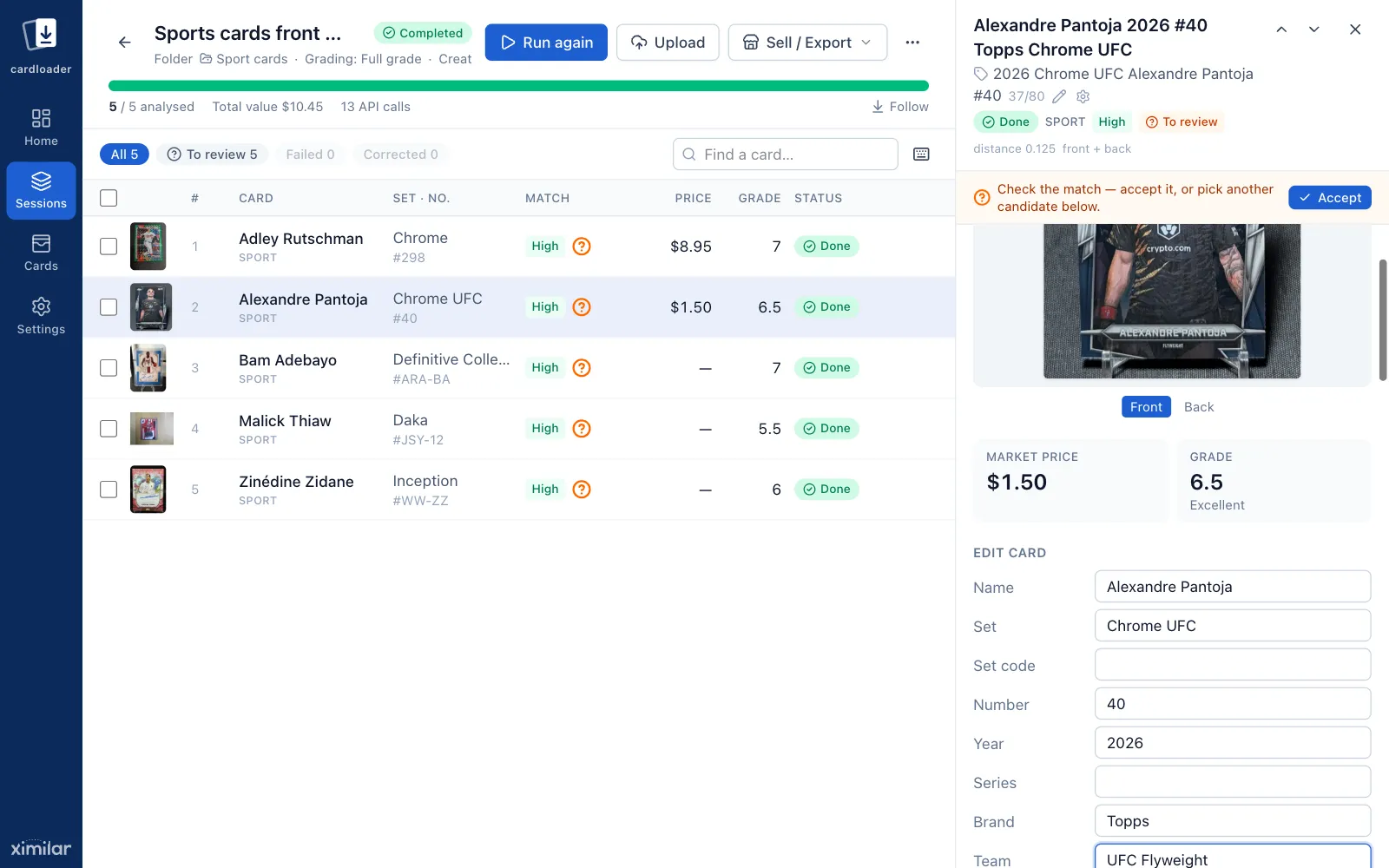
Open the card and click Edit next to Card, or press E. Change what you need: name, set, set code, number, year, series, brand, team, serial number, features, the listing title, the price, its location and notes. Save.
Editing the card’s fields or price accepts it and lists it under Corrected. A Location (“Box 4”, “Binder 2, page 7”) or Notes leave the review as it was; both are searchable and go into the CSV export.
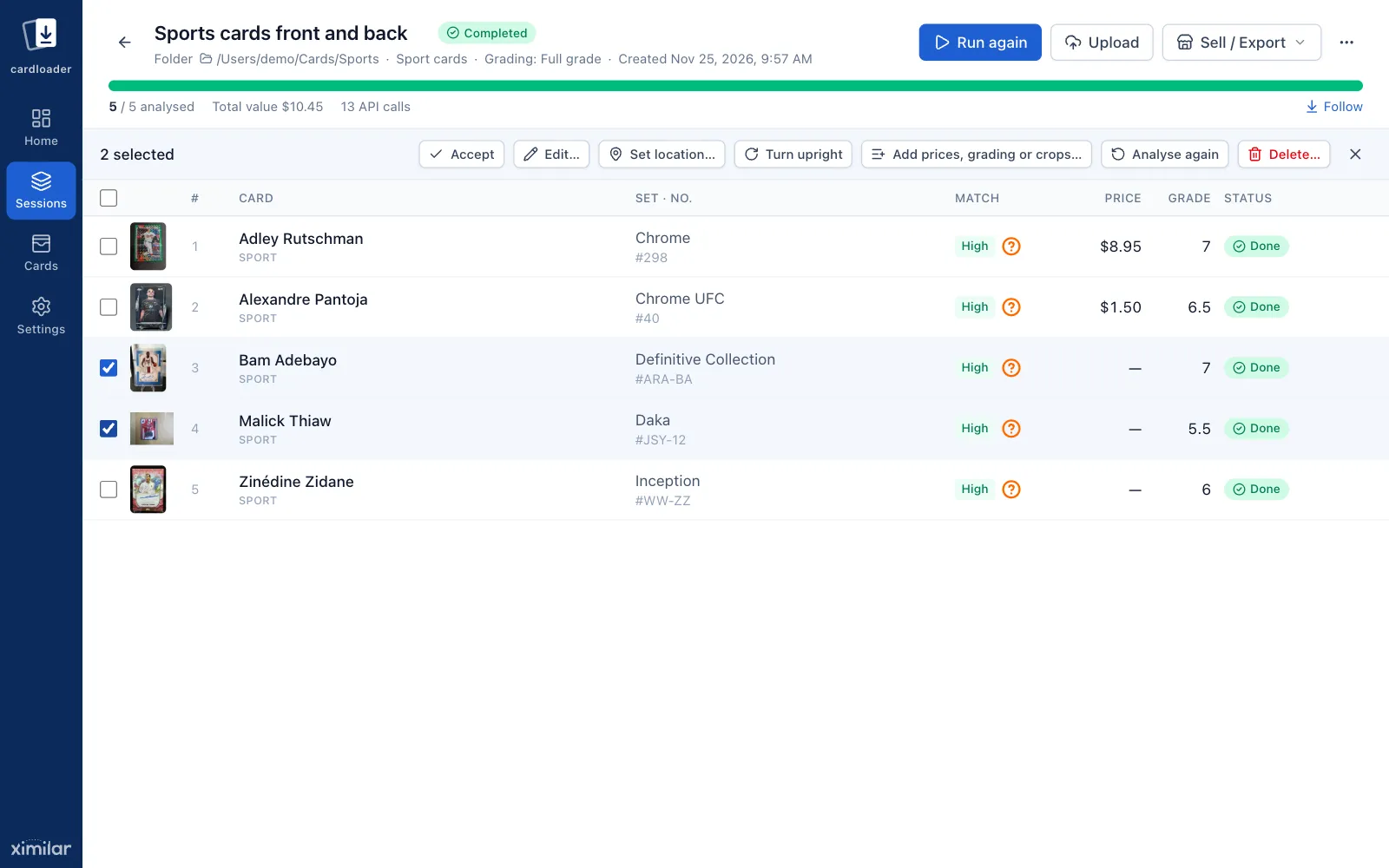
Tick the cards to change together
Tick the rows in the table (Shift + click selects a range). A bar appears with Accept, Edit…, Set location…, Turn upright, Add prices, grading or crops…, Analyse again and Delete…. Click Edit….
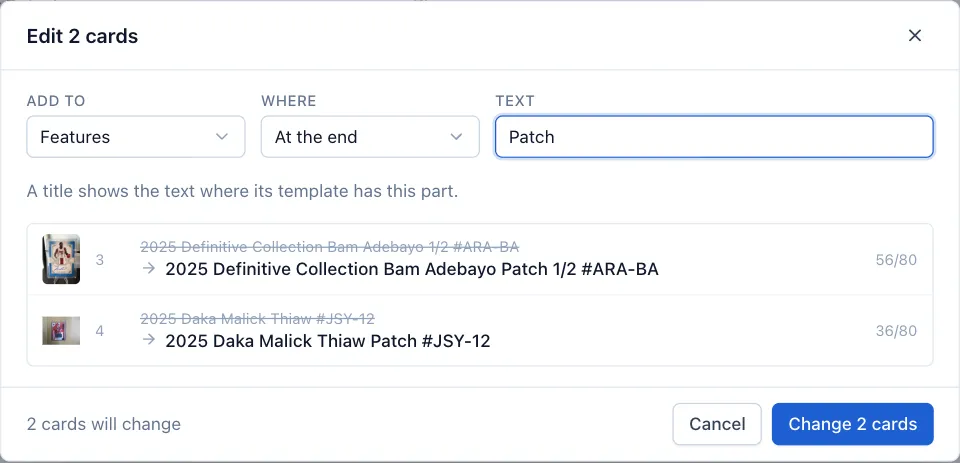
Add the text, and check the titles
Under Add to, choose the Listing title or a field (Features, Series, Brand, Team), then Where: At the end, At the start or Instead of it, and type the Text.
Each card shows its title before and after, with its length out of eBay’s 80 characters. Click Change N cards. A card that already says the text stays as it is.
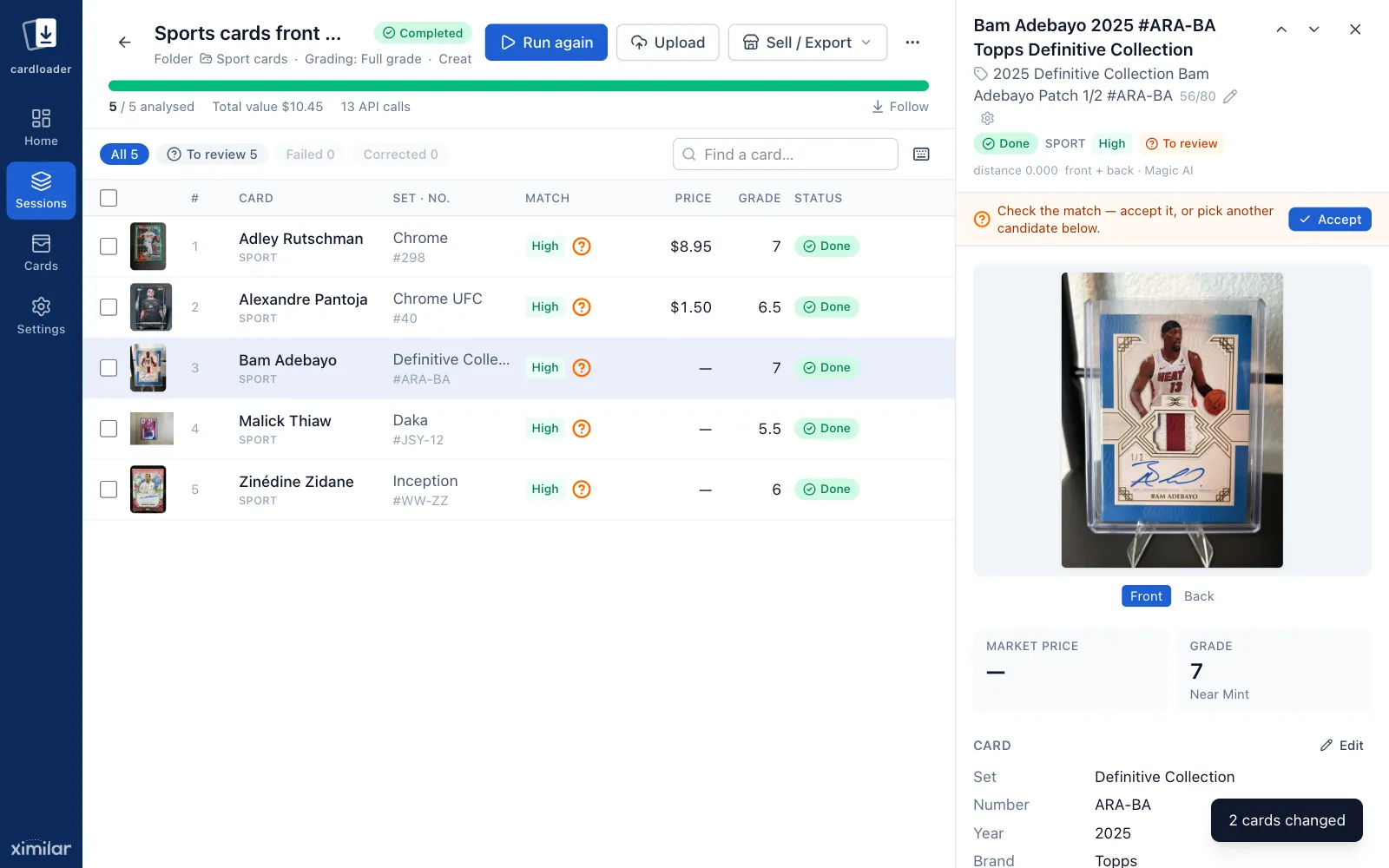
See the change
The cards now carry the text, and their listing titles show it wherever the title template has that part.
How the titles are built is up to you: listing title templates.
Related tutorials
Configuring your own listing title templates
Decide how your cards’ listing titles read on eBay, Whatnot and Shopify: which parts, in what order, your own words, and for which cards, within 80 characters.
How to review identified cards
Check every match Cardloader found: accept it, pick another candidate or fix the card, with keyboard shortcuts that make a whole box quick to review.
Finding cards across all your sessions
Search every identified card of every session by name, set, number, location or notes, spot duplicates, and record where each card is kept.
Start scanning your cards for free
Download Cardloader for Windows, macOS or Linux, point it at a folder or your scanner, and identify your first batch in minutes. No subscription and no account needed.