
 日本語
 Español
 한국어
 简体中文
 Português
 Français
 Deutsch
 Italiano
 ไทย
 العربية
 Polski
 Bahasa Indonesia
 Türkçe
 हिन्दी
 বাংলা
 Русский
 Tiếng Việt
 Nederlands
 Svenska
 Dansk
 Norsk
 Čeština
 עברית
 Filipino
 Bahasa Melayu
Configuring your own listing title templates
Every card gets a listing title, used on eBay, Whatnot and Shopify. Templates say which parts make it, in which order, with your own words, and for which cards, such as only graded cards or only autographs.
What you need
- Identified cards, to see the titles in the preview.
Open Listing titles
Open Settings › Selling and scroll to Listing titles. The Preview shows your newest cards with the title they get now: the usual title, until you add a template.
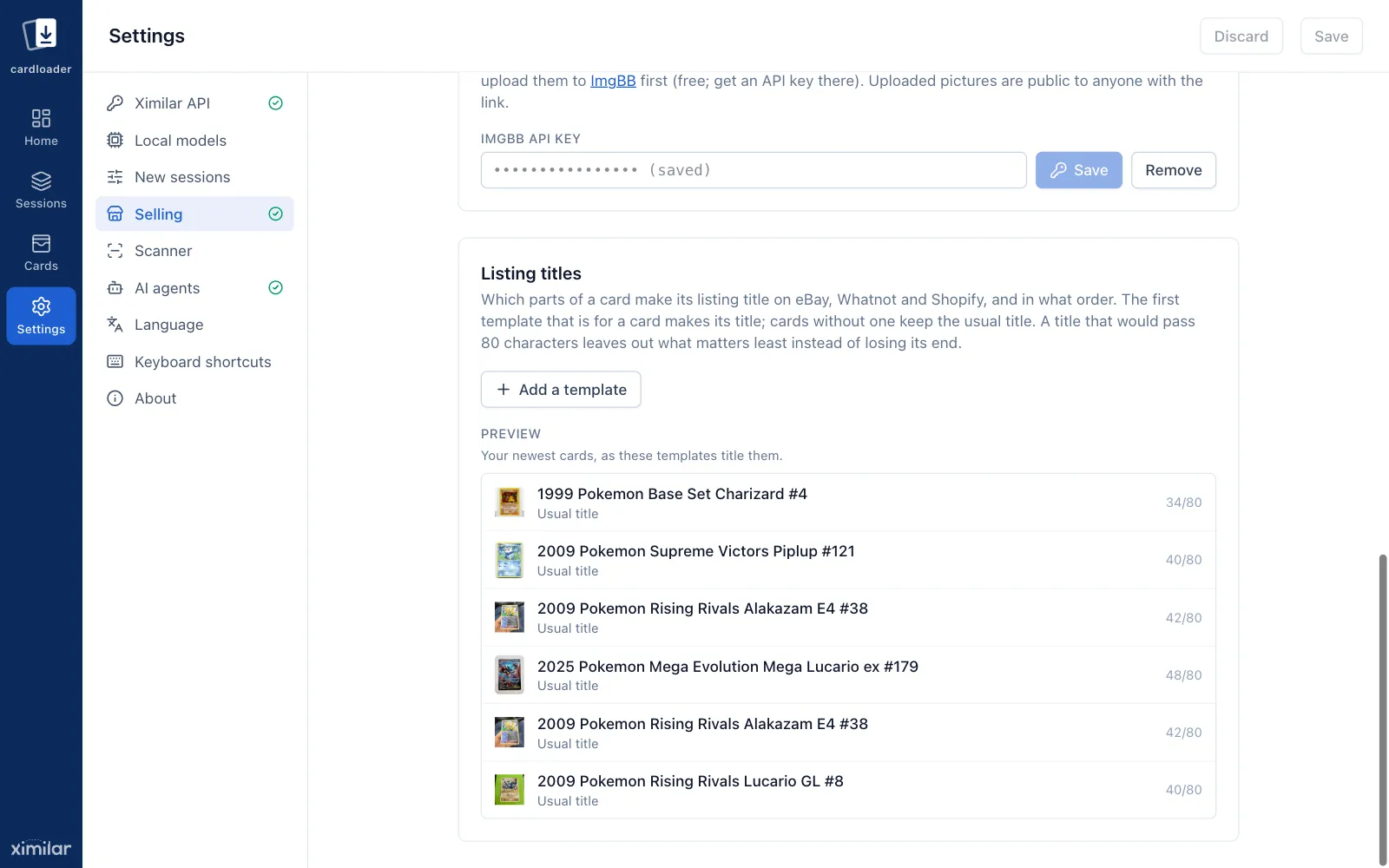
Add a template
Click Add a template and name it. Under For, choose All cards, Sports cards, Trading cards or Comics; under Only, narrow it to Graded cards, Autographs, Parallels or Regular cards if you like.
Build the title from Parts, in order (Add a part…), or type the Pattern directly: parts in braces, your own words around them, for example {game} {name} {setCode} #{number} {year} TCG.
- Parts:
{year} {brand} {set} {name} {series} {features} {serial} {printRun} {number} {team} {grade} {game} {setCode}. - Your own words stay in every title; a part the card doesn’t have drops out together with the word it sits in (a card with no number loses the whole
#{number},#included). {printRun}writes a serial such as 70/99 as /99.
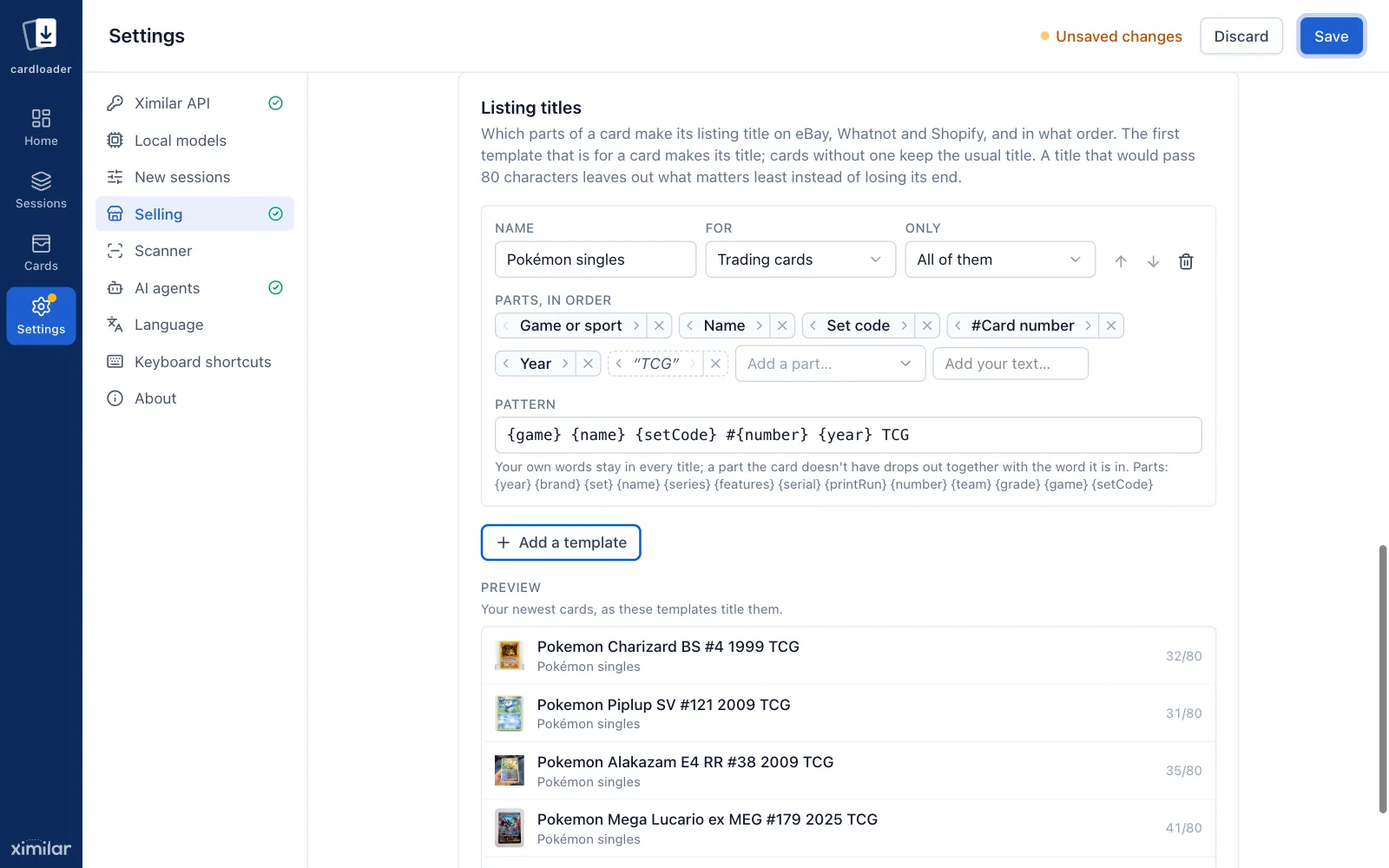
Check the preview and save
The preview shows each card’s new title, which template made it, and its length out of eBay’s 80 characters. A title that would be longer leaves out what matters least instead of being cut off; name, number, grade and your own words always stay. Click Save.
The first template that fits a card makes its title; cards no template fits keep the usual one. A title typed on a card itself (Edit › Listing title) wins over every template.
Related tutorials
How to edit cards, one or many at once
Fix a card’s name, set, number or price, add team, serial or features, and add the same text to many cards’ titles or fields at once, with a preview.
How to list your cards on eBay
Turn a session of identified cards into eBay listings with your own eBay developer keys: connect your account, create drafts, check them, then publish.
How to export your cards for Whatnot
Make Whatnot’s bulk listing CSV from a session: auction or Buy it Now, shipping profile, condition, prices and pictures, ready to import as drafts.
Start scanning your cards for free
Download Cardloader for Windows, macOS or Linux, point it at a folder or your scanner, and identify your first batch in minutes. No subscription and no account needed.