
 日本語
 Español
 한국어
 简体中文
 Português
 Français
 Deutsch
 Italiano
 ไทย
 العربية
 Polski
 Bahasa Indonesia
 Türkçe
 हिन्दी
 বাংলা
 Русский
 Tiếng Việt
 Nederlands
 Svenska
 Dansk
 Norsk
 Čeština
 עברית
 Filipino
 Bahasa Melayu
How to identify cards with an AI agent such as Claude
An AI agent such as Claude can be Cardloader’s identification engine. Cardloader reads the folder, pairs the pictures and keeps the cards; the agent looks at each card and answers with what it is.
What you need
- Cardloader connected to your AI app, with Run and review allowed (connecting an AI agent).
- An AI app that connects to MCP servers and can look at pictures, such as Claude Desktop. No Ximilar API token is needed to identify with an agent.
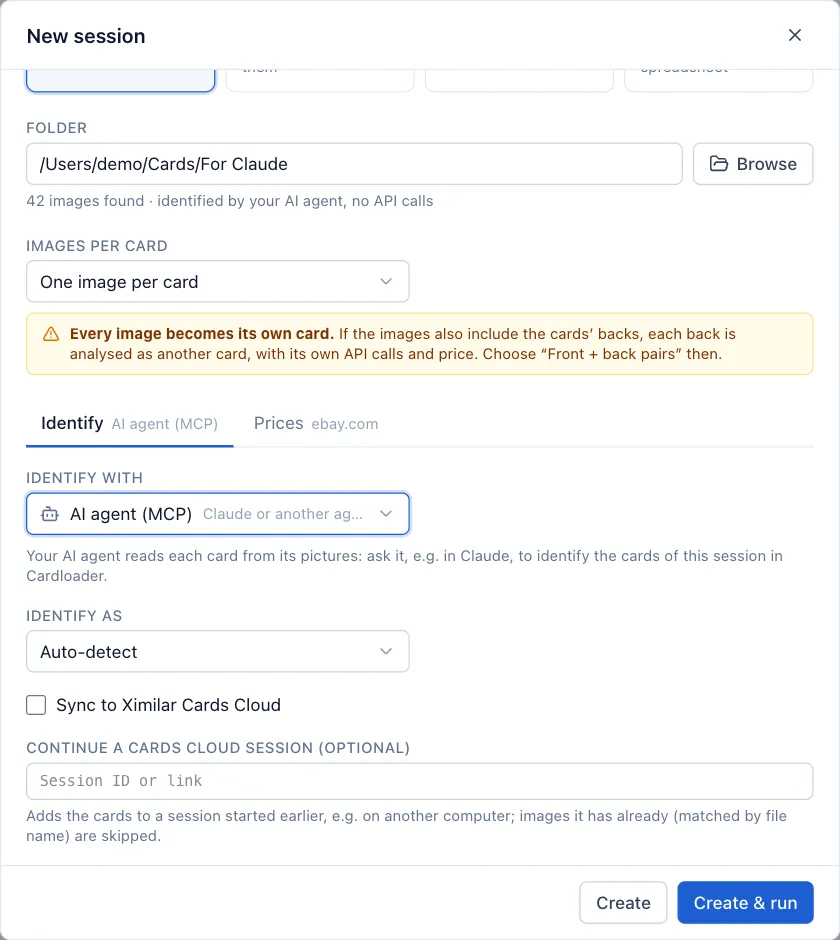
Choose the AI agent in a new session
Click New session and choose your folder. In the Identify tab, set Identify with to AI agent (MCP). Tick Prices too if the agent should also price the cards (pricing with an agent).
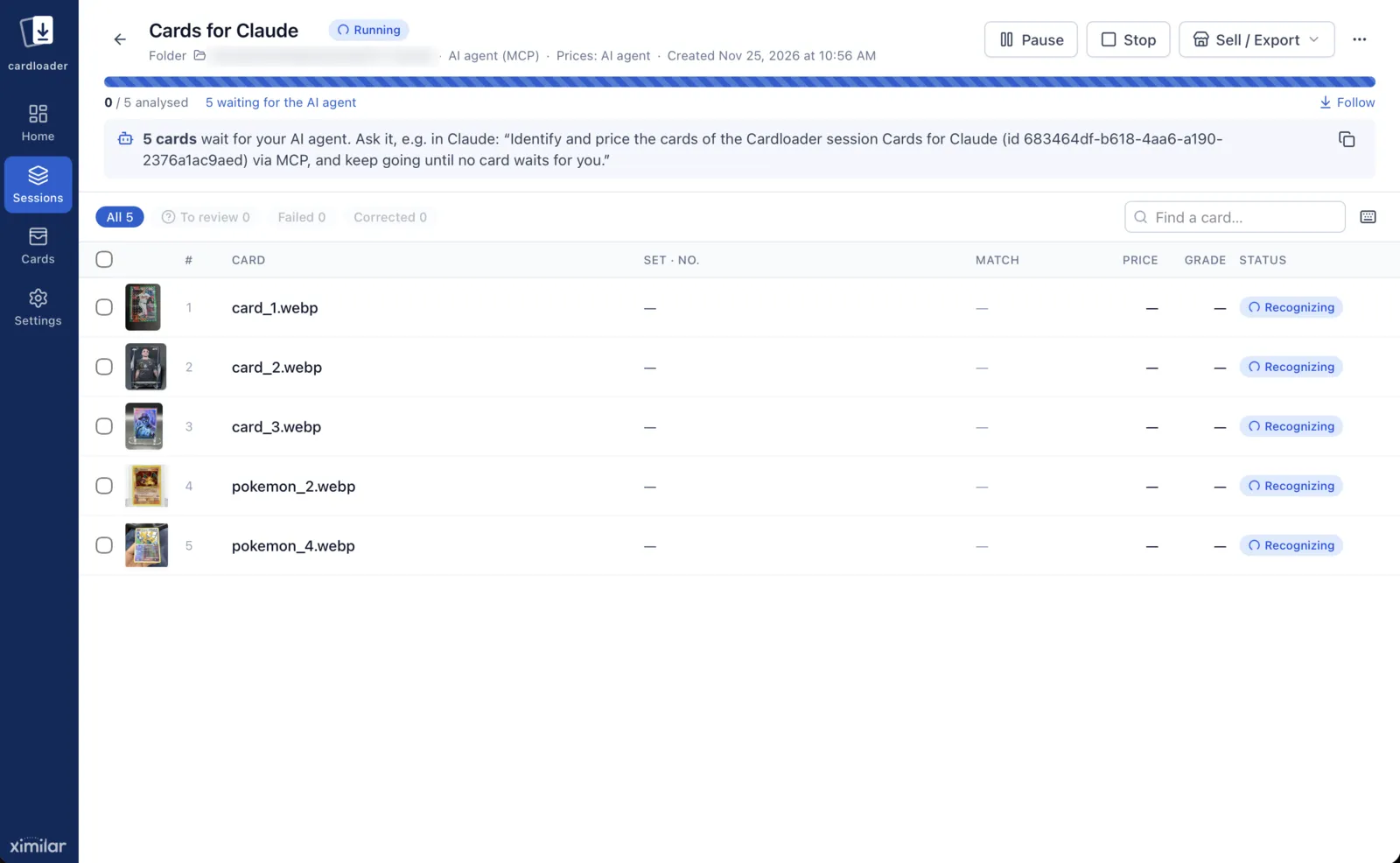
Run it and copy the prompt
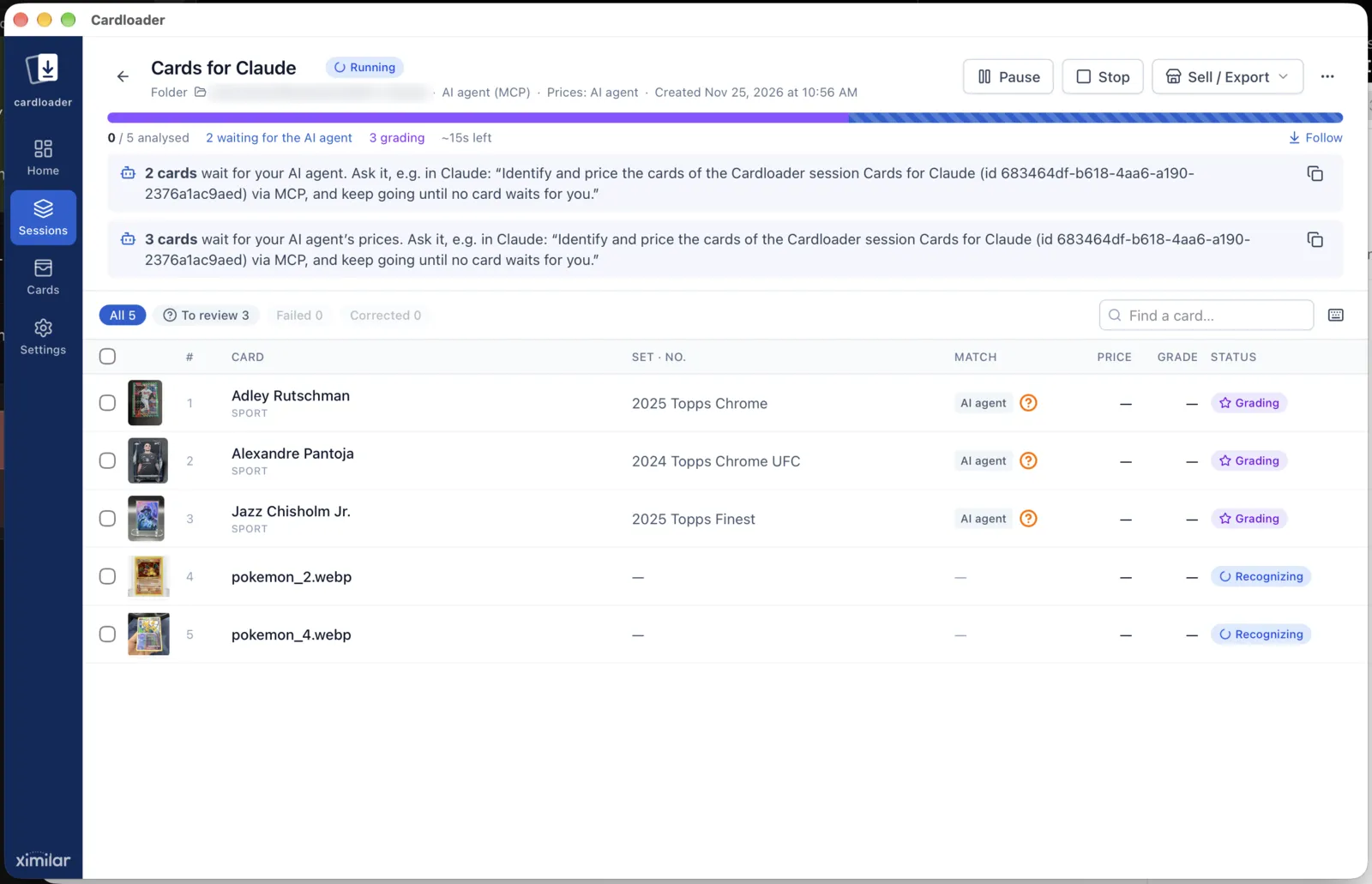
Click Create & run. Cardloader reads the pictures, and the cards wait for your agent. A banner says how many, with the prompt to give it: click Copy the prompt.
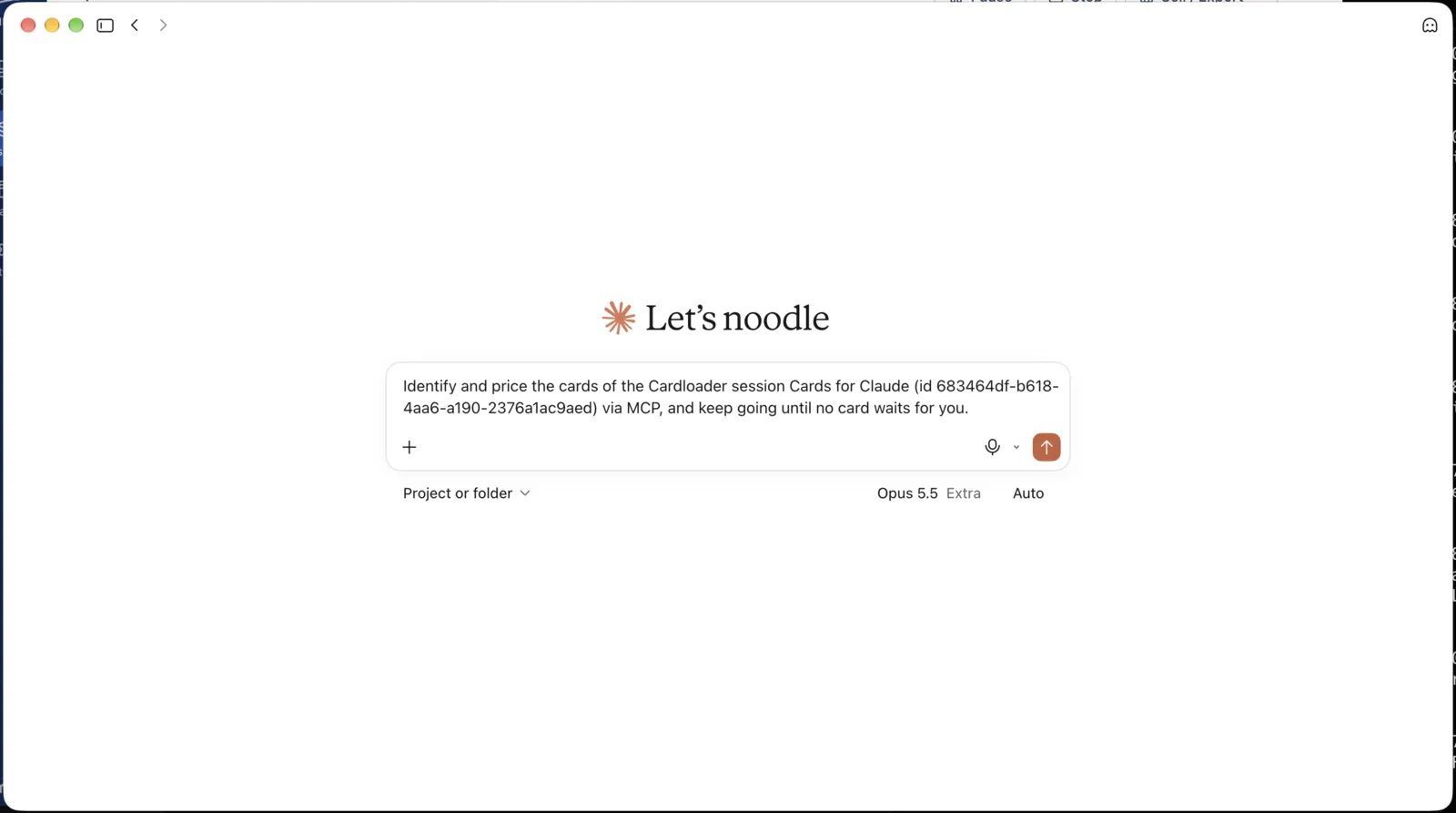
Paste it into your AI app
Paste the prompt into Claude Desktop (or the app you connected) and send it. One prompt covers everything the session asks of the agent, so it keeps going until no card waits for it.
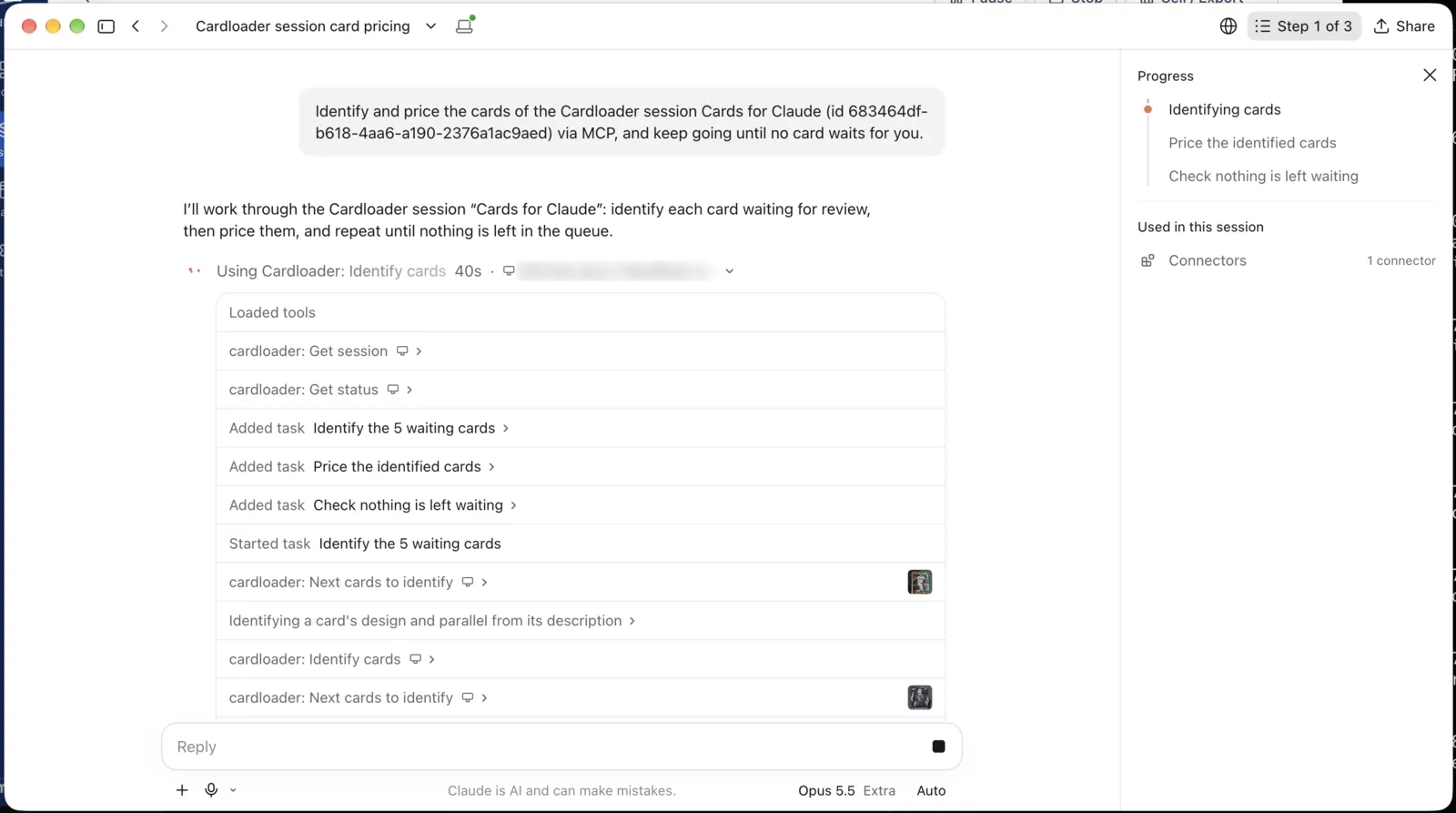
Watch the agent work
The agent asks Cardloader for the next cards, looks at their front and back, and answers with each card’s name, set, number and year. Cards come in as it answers, marked AI agent in the Match column.
It reads each card from its pictures alone, unless you allow Search the internet in Settings › AI agents: then it may check a card’s set, number or parallel on the web.
Check what it found
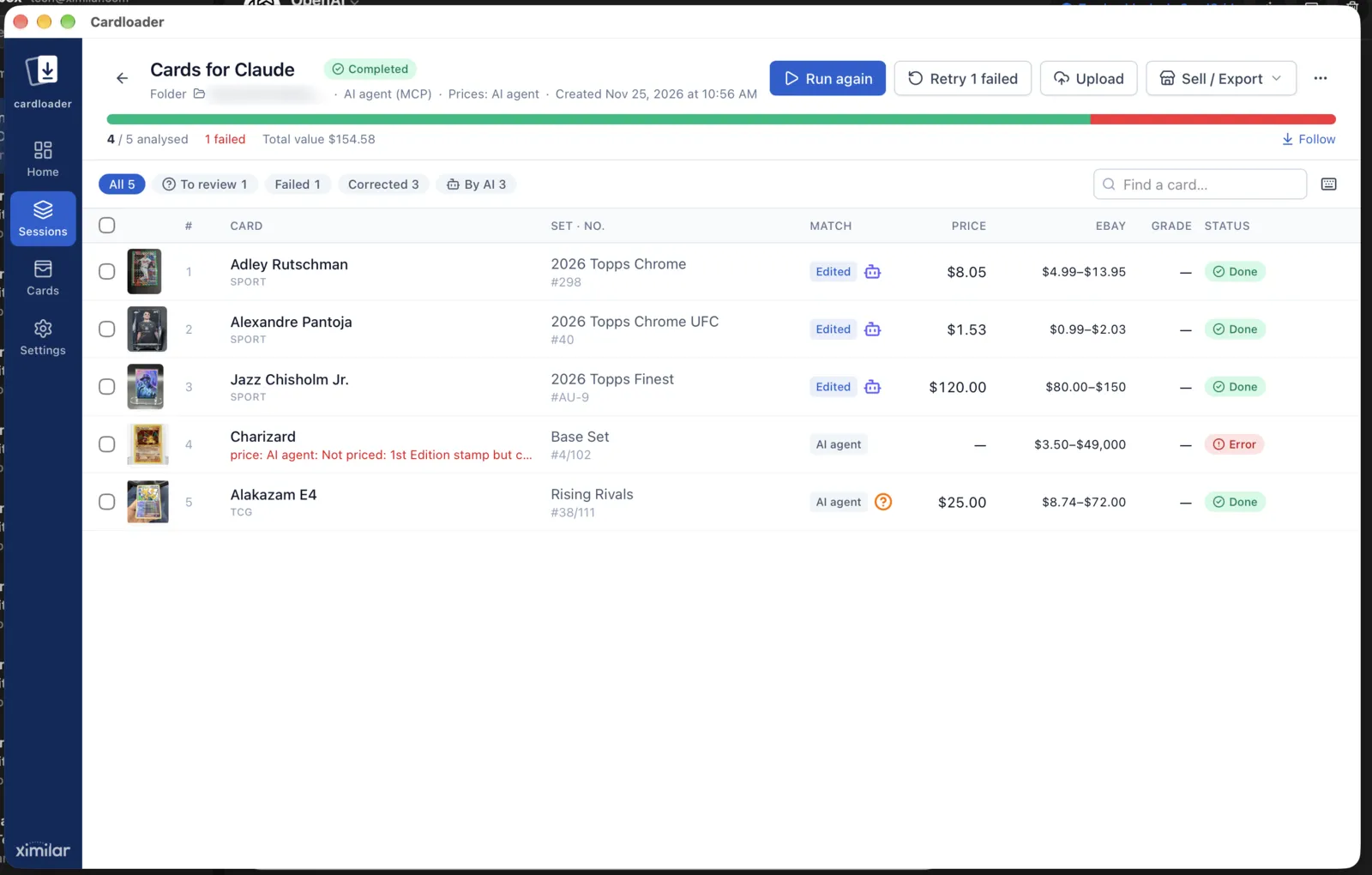
Identified cards show up in the session while the rest still wait. A card the agent couldn’t identify fails with its reason, so you can look at it yourself.
Review the agent’s cards
Every card waits for your review as usual. Cards the agent accepted itself are listed under By AI: look at them and click Confirm. The agent never overrules a card you accepted.
An agent never grades cards: grading, like crops made by Ximilar, still goes through the Ximilar API after the agent has identified a card. It can crop the cards itself, though (cropping with an agent).
Related tutorials
Configuring Cardloader’s MCP server for AI agents
Let Claude Desktop, Claude Code, Codex, Cursor and other AI apps work with Cardloader over MCP: turn it on, choose what agents may do, connect the app.
How to price cards with an AI agent
Let Claude or another AI agent price your cards in Cardloader: it looks at each identified card, checks what it sells for and answers with a price and a note.
How to review identified cards
Check every match Cardloader found: accept it, pick another candidate or fix the card, with keyboard shortcuts that make a whole box quick to review.
Start scanning your cards for free
Download Cardloader for Windows, macOS or Linux, point it at a folder or your scanner, and identify your first batch in minutes. No subscription and no account needed.