
 日本語
 Español
 한국어
 简体中文
 Português
 Français
 Deutsch
 Italiano
 ไทย
 العربية
 Polski
 Bahasa Indonesia
 Türkçe
 हिन्दी
 বাংলা
 Русский
 Tiếng Việt
 Nederlands
 Svenska
 Dansk
 Norsk
 Čeština
 עברית
 Filipino
 Bahasa Melayu
Syncing sessions to Ximilar Cards Cloud
Cards Cloud is Ximilar’s online store of card sessions, shared with its Cardstream live-stream app. Cardloader can upload a session there, keep it up to date as cards come in, and add to a session started elsewhere.
What you need
- A Ximilar API token on an account with Cards Cloud: Settings › Ximilar API › Test connection shows “Cards Cloud available” (connecting).
- Cards Cloud bills one API call per session and one per stored picture.
Upload a session
Open a session and click Upload in its header. Every card goes to Cards Cloud with its picture and match.
To sync a session from the start, tick Sync to Ximilar Cards Cloud in New session instead; Settings › New sessions › Sync new sessions to Cards Cloud makes it the default.
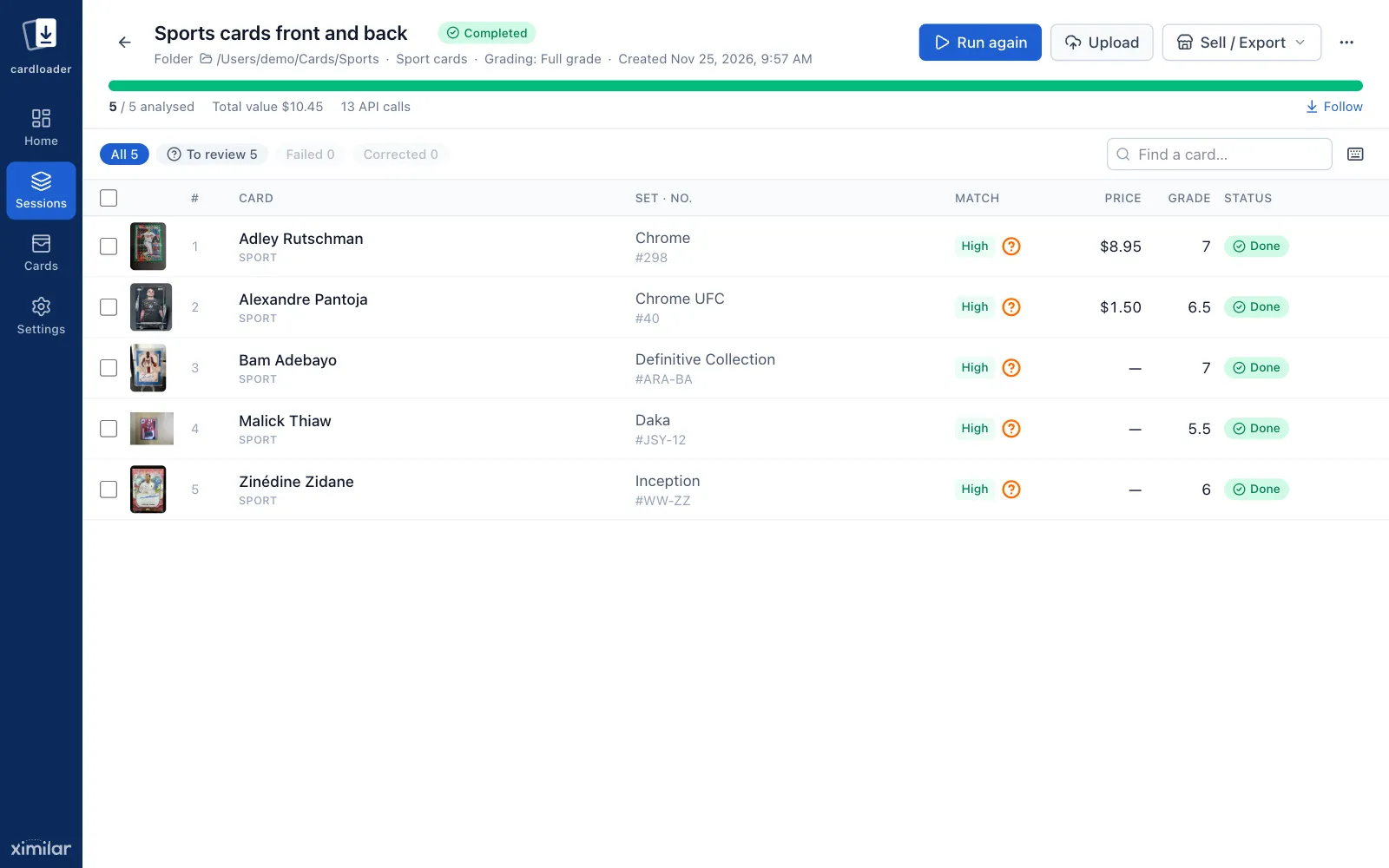
See what is synced
The header counts the synced cards (Cards Cloud: 5 synced) with a link that opens the session in Cards Cloud. Candidates you pick and fields you correct later are sent as corrections, so the cloud copy stays right.
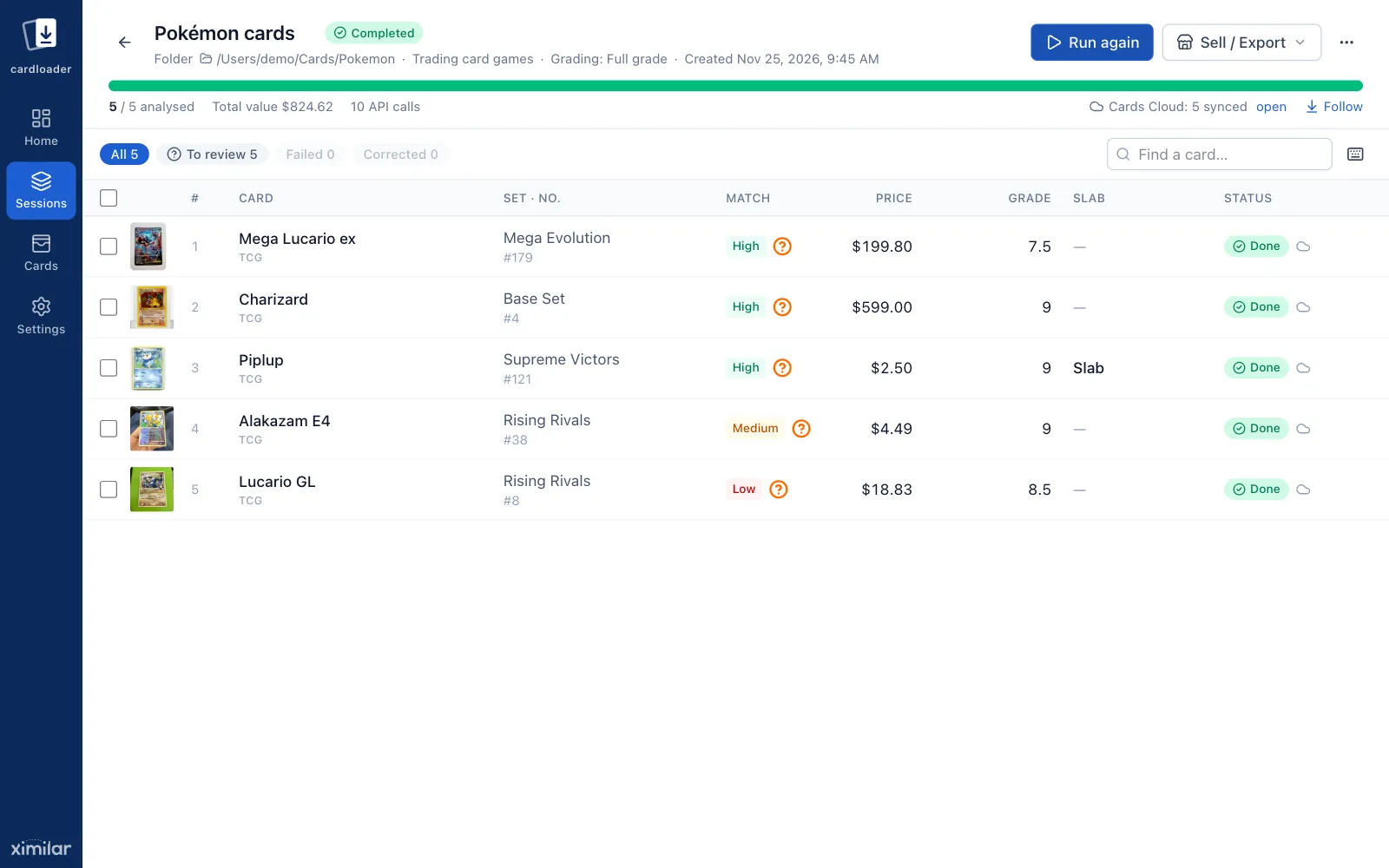
Browse or continue a cloud session
The Cards Cloud tab of the Sessions page lists the sessions in your account, from Cardloader and from Cardstream; you can open, rename and delete them there.
To add cards to a session started on another computer, paste its ID or link into Continue a Cards Cloud session in New session. Pictures the cloud session already has (matched by file name) are skipped.
Related tutorials
How to connect the Ximilar API
Add your Ximilar API token to Cardloader for exact card matches, prices, grading and crops: where to find the token and how to test the connection.
How to scan cards with the Ximilar API
Identify a folder of trading card pictures with the Ximilar API in Cardloader: name, set, number, a confidence for each match and market prices.
Changing the defaults for new sessions
Set what every new Cardloader session starts with: the identification engine, the kind of cards, grading, the condition scale, the folder and more.
Start scanning your cards for free
Download Cardloader for Windows, macOS or Linux, point it at a folder or your scanner, and identify your first batch in minutes. No subscription and no account needed.