
 日本語
 Español
 한국어
 简体中文
 Português
 Français
 Deutsch
 Italiano
 ไทย
 العربية
 Polski
 Bahasa Indonesia
 Türkçe
 हिन्दी
 বাংলা
 Русский
 Tiếng Việt
 Nederlands
 Svenska
 Dansk
 Norsk
 Čeština
 עברית
 Filipino
 Bahasa Melayu
How to connect the Ximilar API
The Ximilar API gives Cardloader its most accurate identification, market prices, grading and crops. It needs a token from your Ximilar account; Cardloader keeps it in your system’s keychain.
What you need
- A Ximilar account (app.ximilar.com). Card recognition needs a plan that includes it, or a trial; Ximilar bills per API call (pricing).
Copy your token from the Ximilar App
Sign in to the Ximilar App and open your profile: your API token is there. Copy it.
Paste it into Cardloader
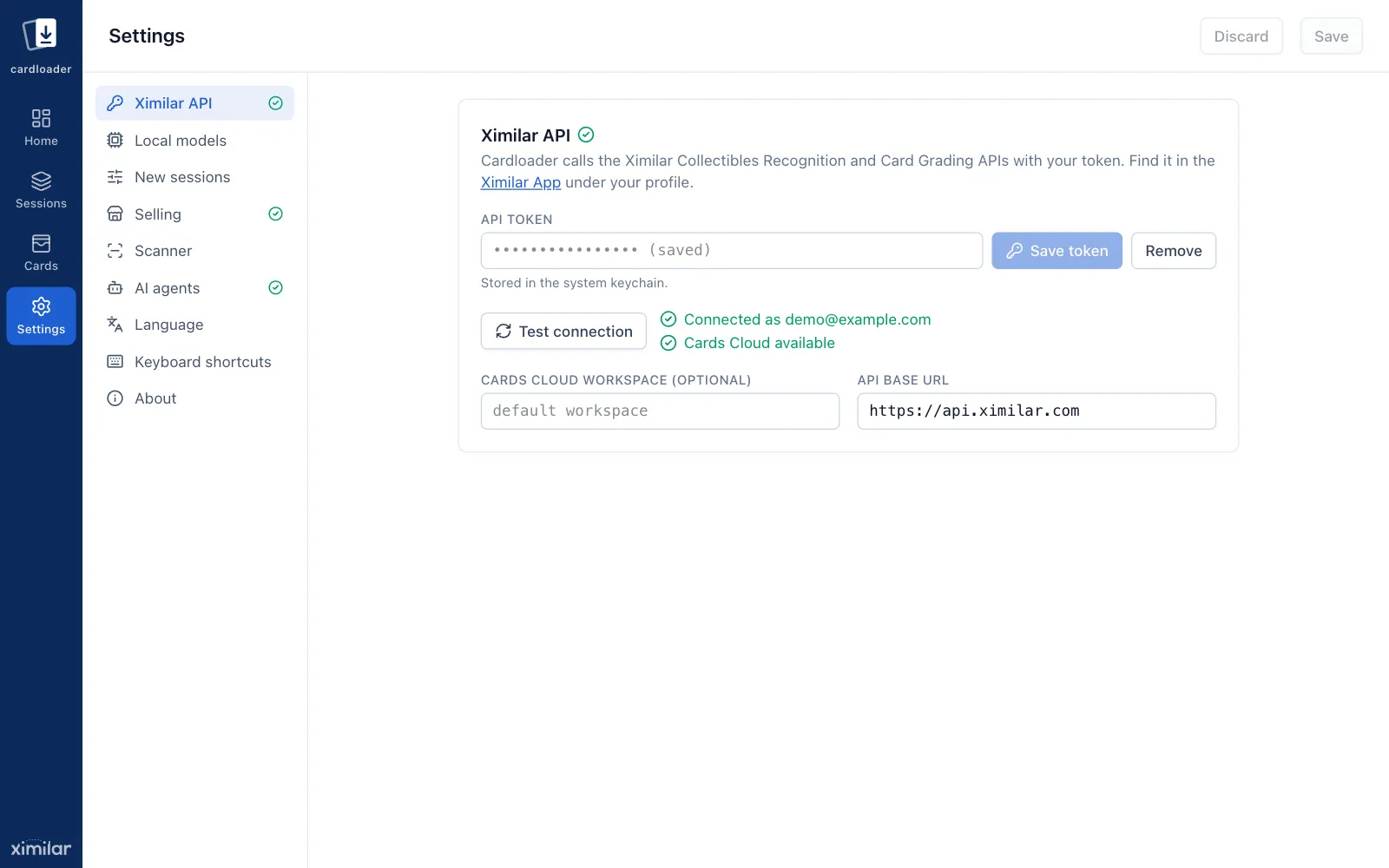
In Cardloader, open Settings › Ximilar API (⌘/Ctrl + ,), paste the token into API token and click Save token. It is stored in the system keychain, not in a file.
Click Test connection. Cardloader shows the account it is connected as, and whether Cards Cloud is available on it.
The setup wizard asks for the same token on its last step, so you may have added it already. Remove deletes it from this computer.
Leave the rest as it is
Cards Cloud workspace is only for accounts with several workspaces, and API base URL only for a different Ximilar server. Both can stay empty or as they are.
You’re ready to identify cards: How to scan cards with the Ximilar API. Without a token, the local model and AI agents still identify cards on your computer.
Related tutorials
How to scan cards with the Ximilar API
Identify a folder of trading card pictures with the Ximilar API in Cardloader: name, set, number, a confidence for each match and market prices.
Getting started with Cardloader
Install Cardloader and answer the setup questions: what to do with your cards, what you collect, how they come in and what identifies them. Then scan.
How to download a local AI model
Download a vision model that identifies cards on your computer, free and offline: choosing a model, accepting its license and running it on your GPU.
Start scanning your cards for free
Download Cardloader for Windows, macOS or Linux, point it at a folder or your scanner, and identify your first batch in minutes. No subscription and no account needed.