
 日本語
 Español
 한국어
 简体中文
 Português
 Français
 Deutsch
 Italiano
 ไทย
 العربية
 Polski
 Bahasa Indonesia
 Türkçe
 हिन्दी
 বাংলা
 Русский
 Tiếng Việt
 Nederlands
 Svenska
 Dansk
 Norsk
 Čeština
 עברית
 Filipino
 Bahasa Melayu
How to crop card pictures with the Ximilar API
Listings look better with the card alone, square and straight. Cardloader can have the Ximilar API cut every card out of its picture and save the crops in a folder, while it identifies the cards or on their own.
What you need
- A Ximilar API token (How to connect the Ximilar API). Cropping is one more API call per card.
- A folder for the crops, other than the one the pictures are read from.
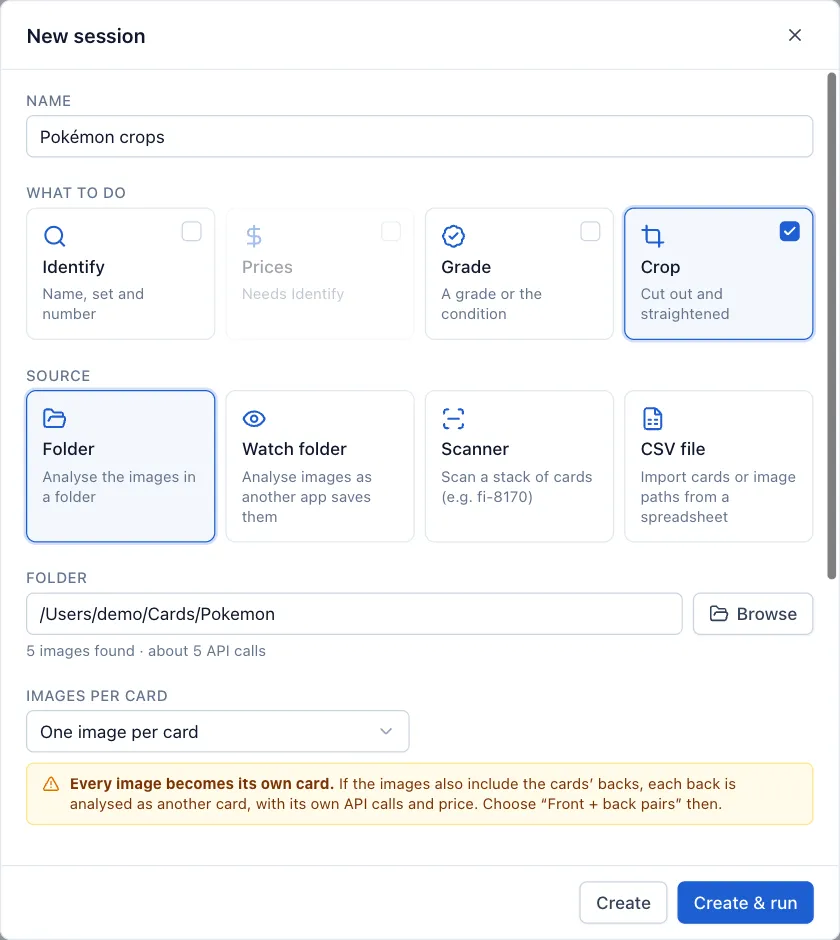
Tick Crop
In New session, tick Crop under What to do. Keep Identify to name the cards too, or untick it (and Grade) for a session that only crops. Choose Folder and your pictures.
Choose where the crops go
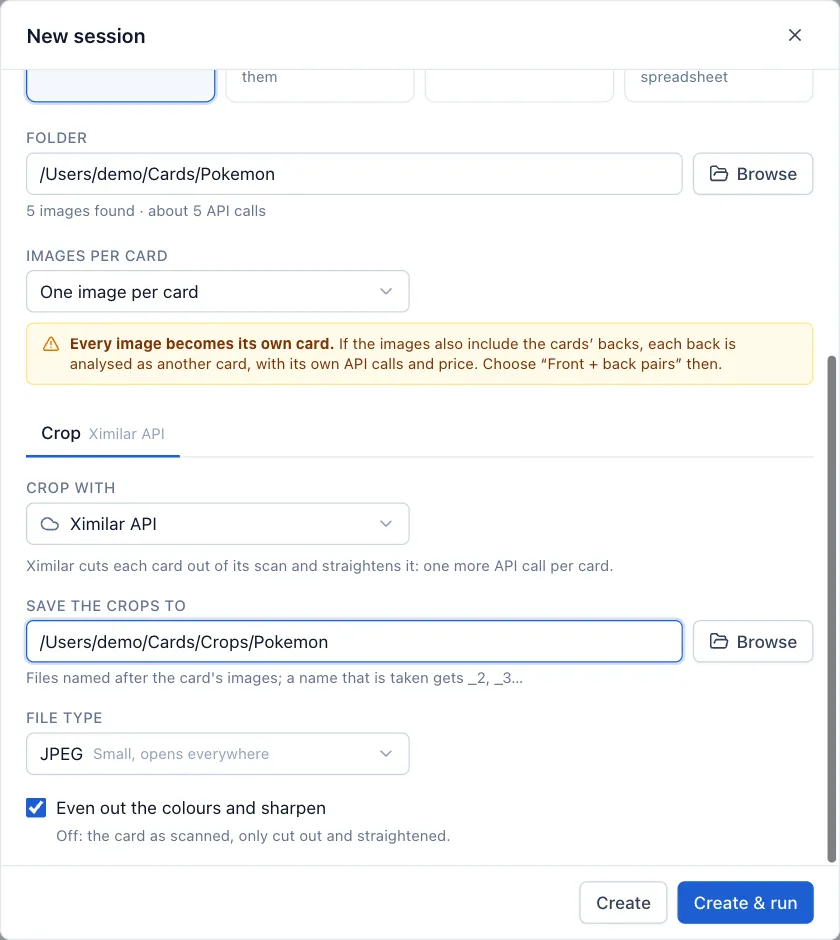
In the Crop tab, keep Crop with: Ximilar API. Choose the folder under Save the crops to and the File type: JPEG (small, opens everywhere), PNG (lossless, larger) or WebP (as Ximilar sends it, the smallest).
Even out the colours and sharpen lets Ximilar correct the picture; untick it to keep the card exactly as scanned, only cut out and straightened.
Each crop is named after the card’s picture. A name already taken in the folder gets _2, _3…, but a card cropped again replaces its own file.
Run it and look at a crop
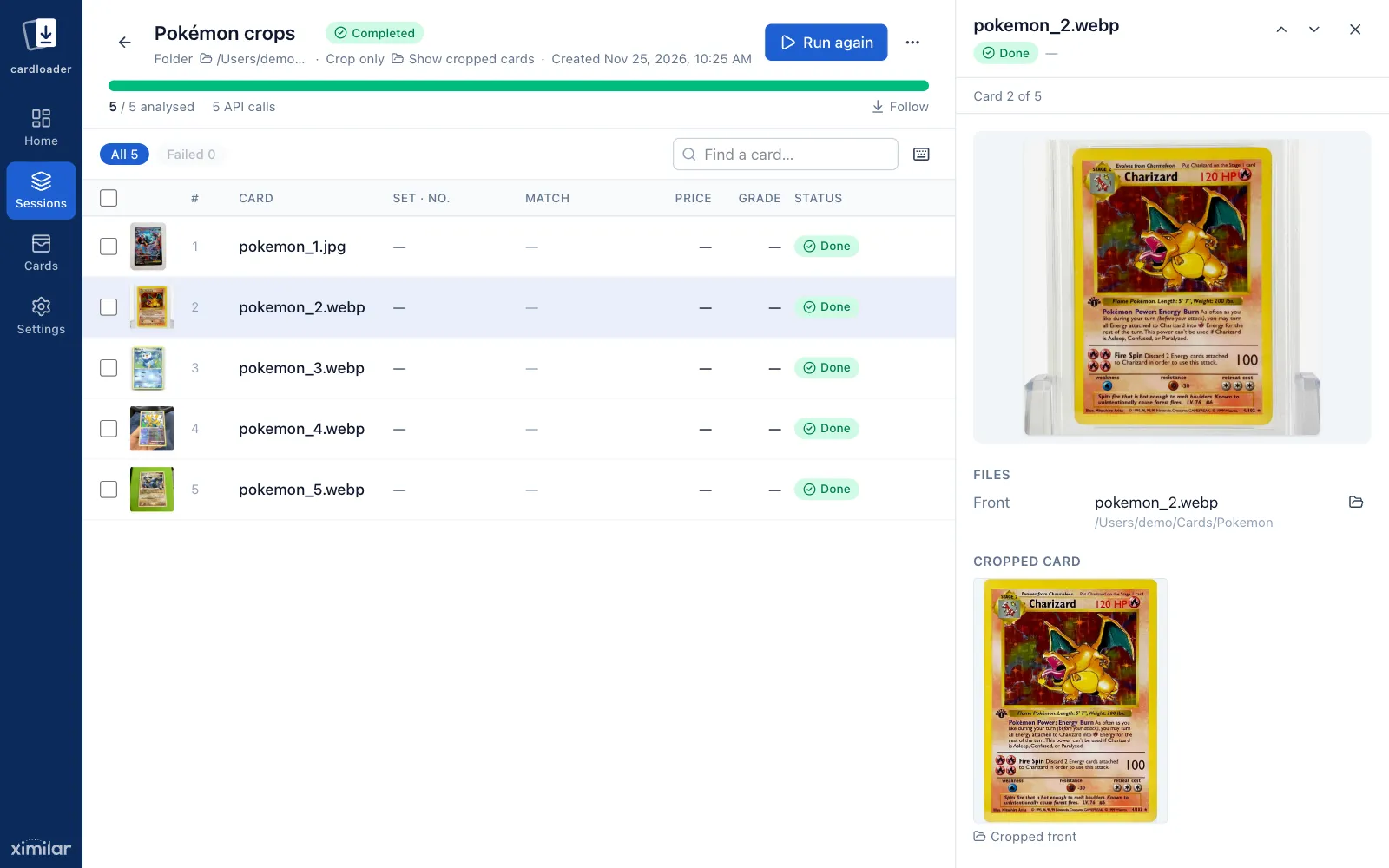
Click Create & run. Open a card: Cropped card shows the crop under the original; click it to open the file. Show cropped cards in the session header opens the folder.
Use the files
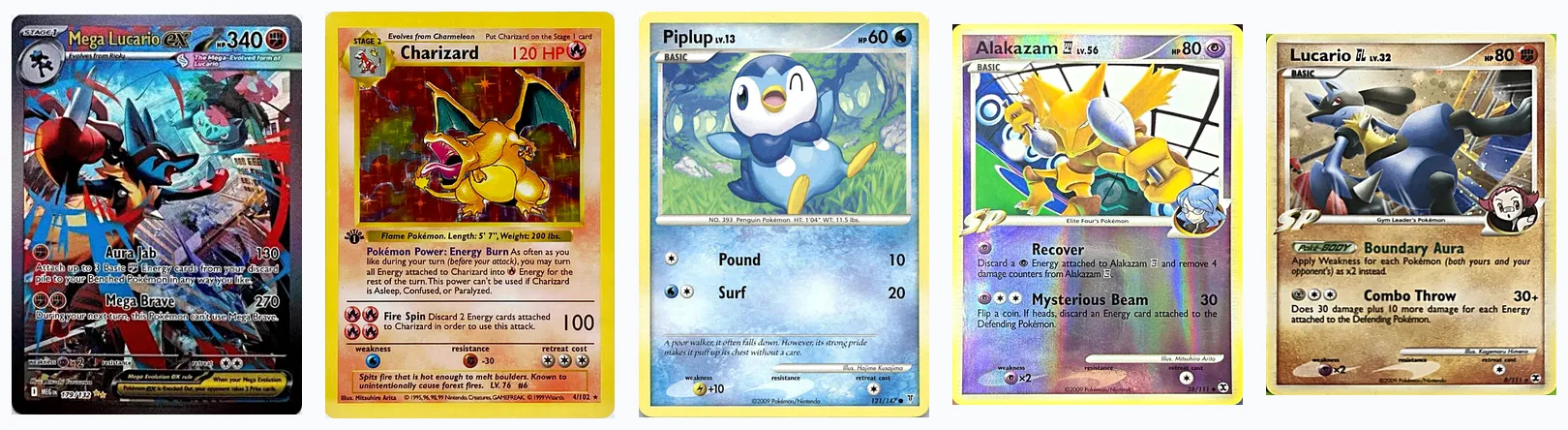
The folder now holds one picture per card, ready for listings or your own catalogue.
Cards you already identified can be cropped later without identifying them again (Add prices, grading or crops). To crop with no API calls, let the local model or an AI agent find the corners (cropping on your computer).
Related tutorials
How to crop cards with a local model or an AI agent
Crop card pictures with no API calls: a local model or an AI agent such as Claude finds each card’s four corners and Cardloader cuts the full scan.
Adding prices, grading or crops to a finished session
Identified a box and now want prices, grades or crops? Add them to the session’s cards later, without identifying them again and without losing your review.
How to export your cards for Whatnot
Make Whatnot’s bulk listing CSV from a session: auction or Buy it Now, shipping profile, condition, prices and pictures, ready to import as drafts.
Start scanning your cards for free
Download Cardloader for Windows, macOS or Linux, point it at a folder or your scanner, and identify your first batch in minutes. No subscription and no account needed.