
 日本語
 Español
 한국어
 简体中文
 Português
 Français
 Deutsch
 Italiano
 ไทย
 العربية
 Polski
 Bahasa Indonesia
 Türkçe
 हिन्दी
 বাংলা
 Русский
 Tiếng Việt
 Nederlands
 Svenska
 Dansk
 Norsk
 Čeština
 עברית
 Filipino
 Bahasa Melayu
Adding prices, grading or crops to a finished session
A session doesn’t have to do everything at once. Identify first, and add eBay prices, grading or crops to the same cards later: they aren’t identified again, and your review stays as it is.
What you need
- A finished session with identified cards.
- What the added task needs: the Ximilar API token for its grading or crops, a downloaded local model, or your eBay keyset for eBay prices.
Open Add prices, grading or crops
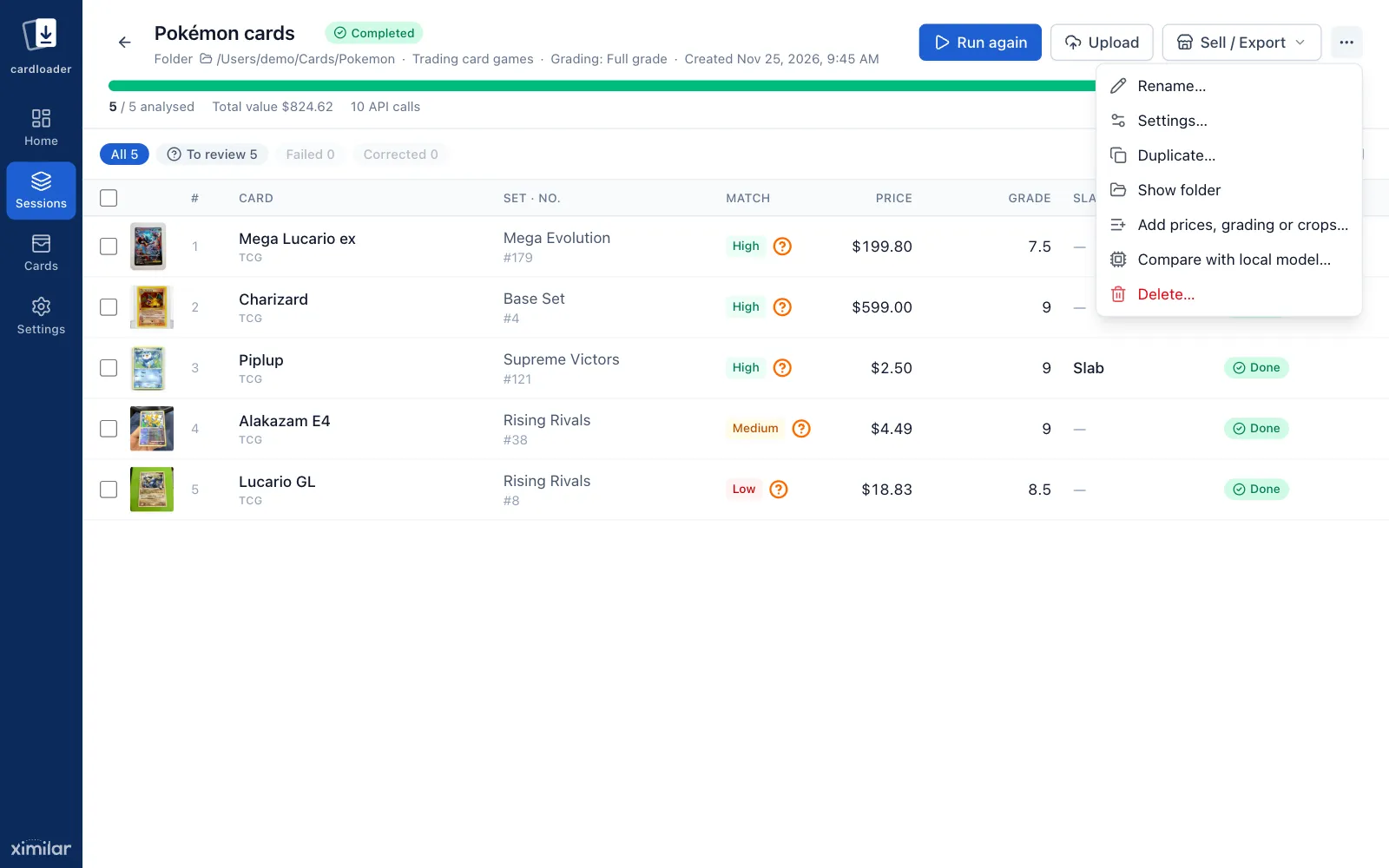
Open the session and choose Add prices, grading or crops… in its ⋯ menu. To do it for some cards only, tick them and use the same button in the bar that appears.
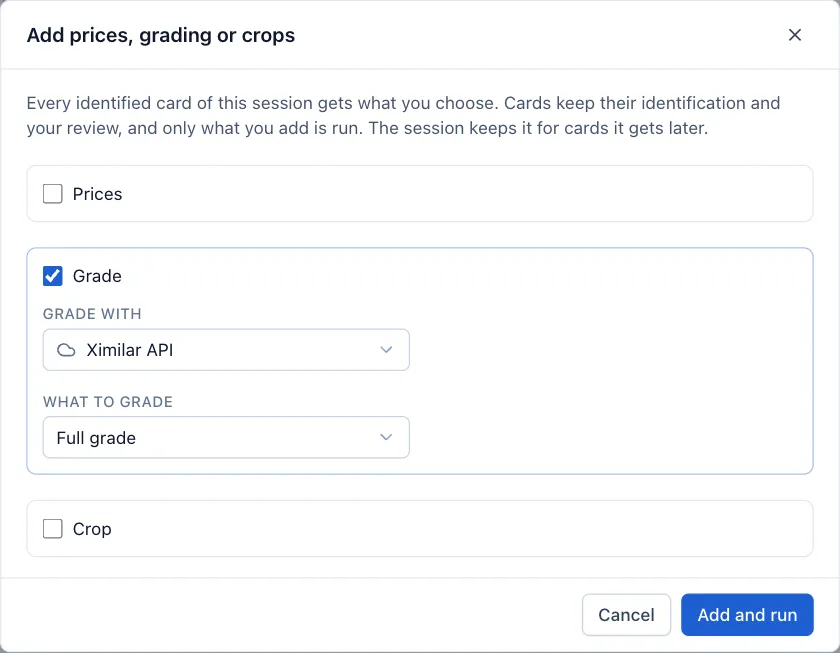
Choose what to add, and who does it
Tick Prices, Grade or Crop and choose who does it, as in a new session: for prices, eBay listings (alone, or with the local model or an AI agent choosing the listings) or an AI agent; for grading, the Ximilar API or the local model; for crops, Ximilar, the local model or an agent.
Ximilar’s own price statistics can’t be added later: they come only with its identification.
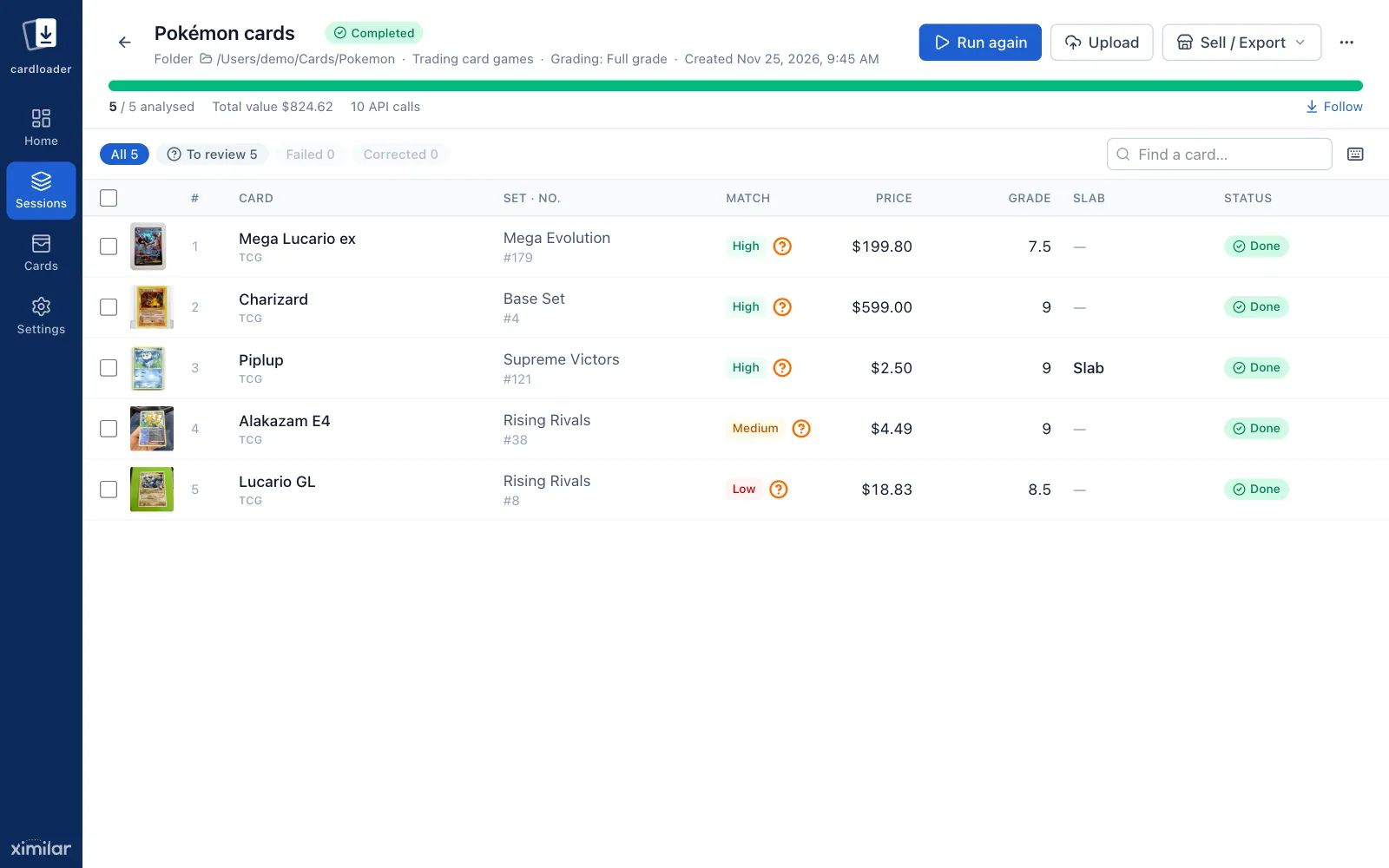
Add and run
Click Add and run. Only the new task runs for each card; names, matches and accepted cards stay as they were. The session keeps the task, so cards it gets later get it too.
Related tutorials
How to grade cards with the Ximilar API
Grade trading and sports cards in Cardloader with Ximilar’s card grader: corners, edges, surface and centering for each side, with the overlays it drew.
How to price cards from their active eBay listings
Use your eBay developer keys to search each identified card’s active eBay listings: Cardloader keeps them on the card and prices it at their median.
How to crop card pictures with the Ximilar API
Cut each card out of its scan or photo, straightened, and save the crops as JPEG, PNG or WebP to a folder of your choice, with or without identifying.
Start scanning your cards for free
Download Cardloader for Windows, macOS or Linux, point it at a folder or your scanner, and identify your first batch in minutes. No subscription and no account needed.