
 日本語
 Español
 한국어
 简体中文
 Português
 Français
 Deutsch
 Italiano
 ไทย
 العربية
 Polski
 Bahasa Indonesia
 Türkçe
 हिन्दी
 বাংলা
 Русский
 Tiếng Việt
 Nederlands
 Svenska
 Dansk
 Norsk
 Čeština
 עברית
 Filipino
 Bahasa Melayu
Retrying failed cards and resuming paused sessions
A card can fail for its own reasons, such as a picture that can’t be read. A whole session pauses when Ximilar can’t be reached. Neither loses work: fix the cause, then retry or resume.
What you need
- A session with a failed card, or a paused one.
See why a card failed
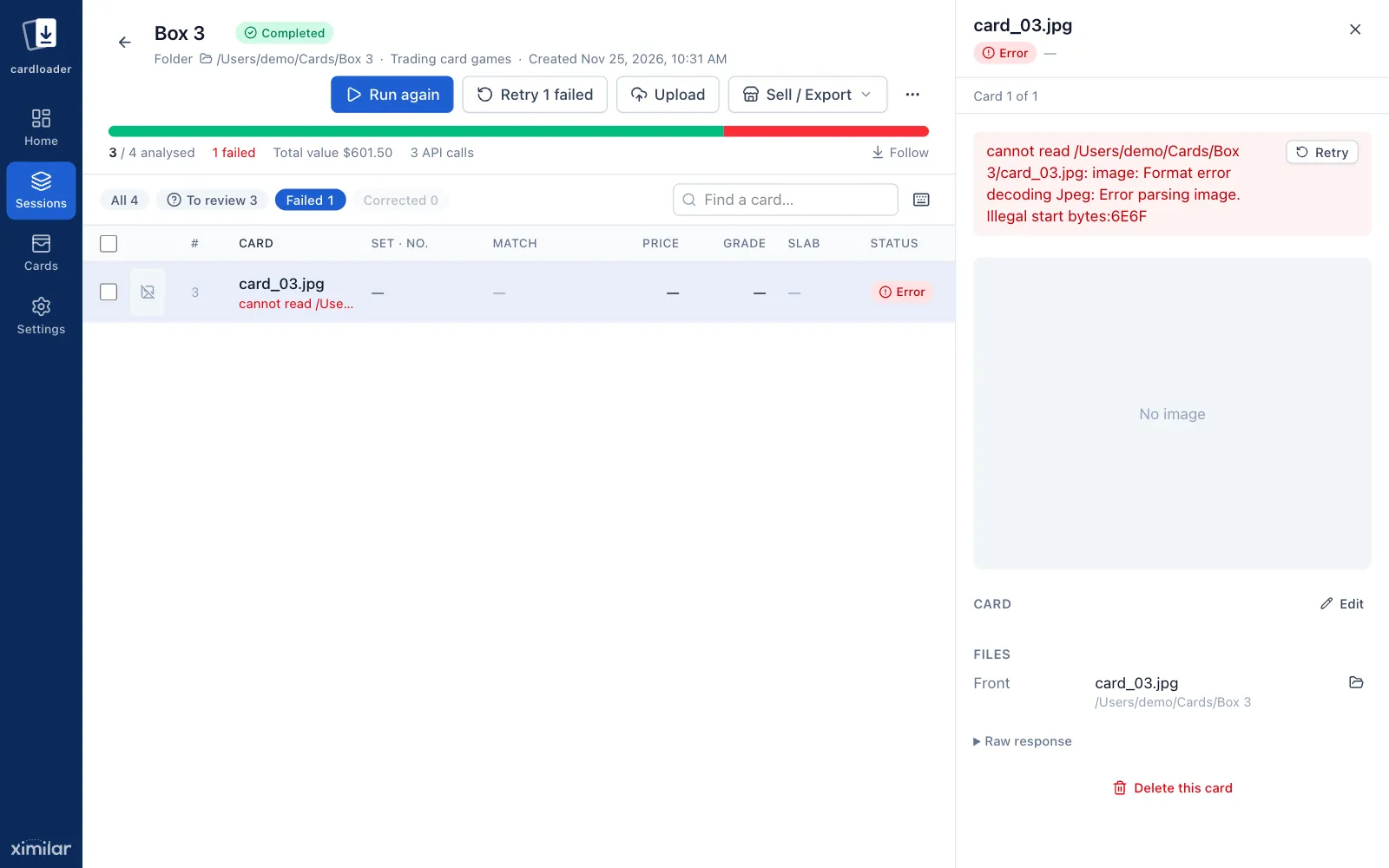
The session header counts failed cards in red. Click the Failed filter and open a card: the reason is at the top of its panel. Here the file wasn’t a picture Cardloader could read.
Fix it and retry
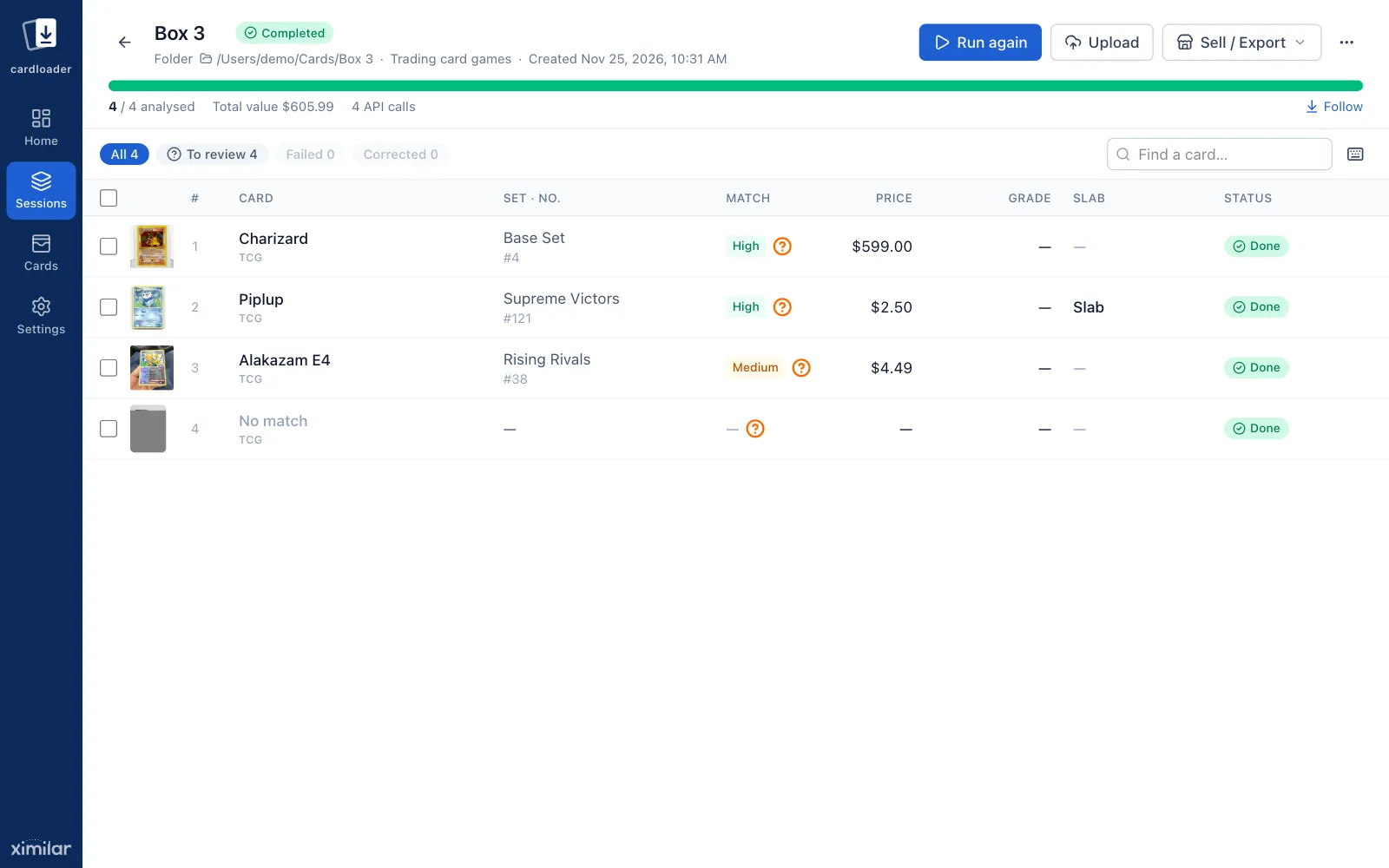
Fix the cause (here: save the picture again), then click Retry on the card, or Retry N failed in the header for all of them. Only those cards run again; the card reads its picture again and is identified.
To analyse cards that didn’t fail once more (with another engine, say), tick them and click Analyse again.
Resume a paused session
When a card still can’t reach Ximilar after a few tries (no internet, Ximilar busy), the session pauses with the reason in its header and the card goes back to the queue. Click Resume when you are online again.
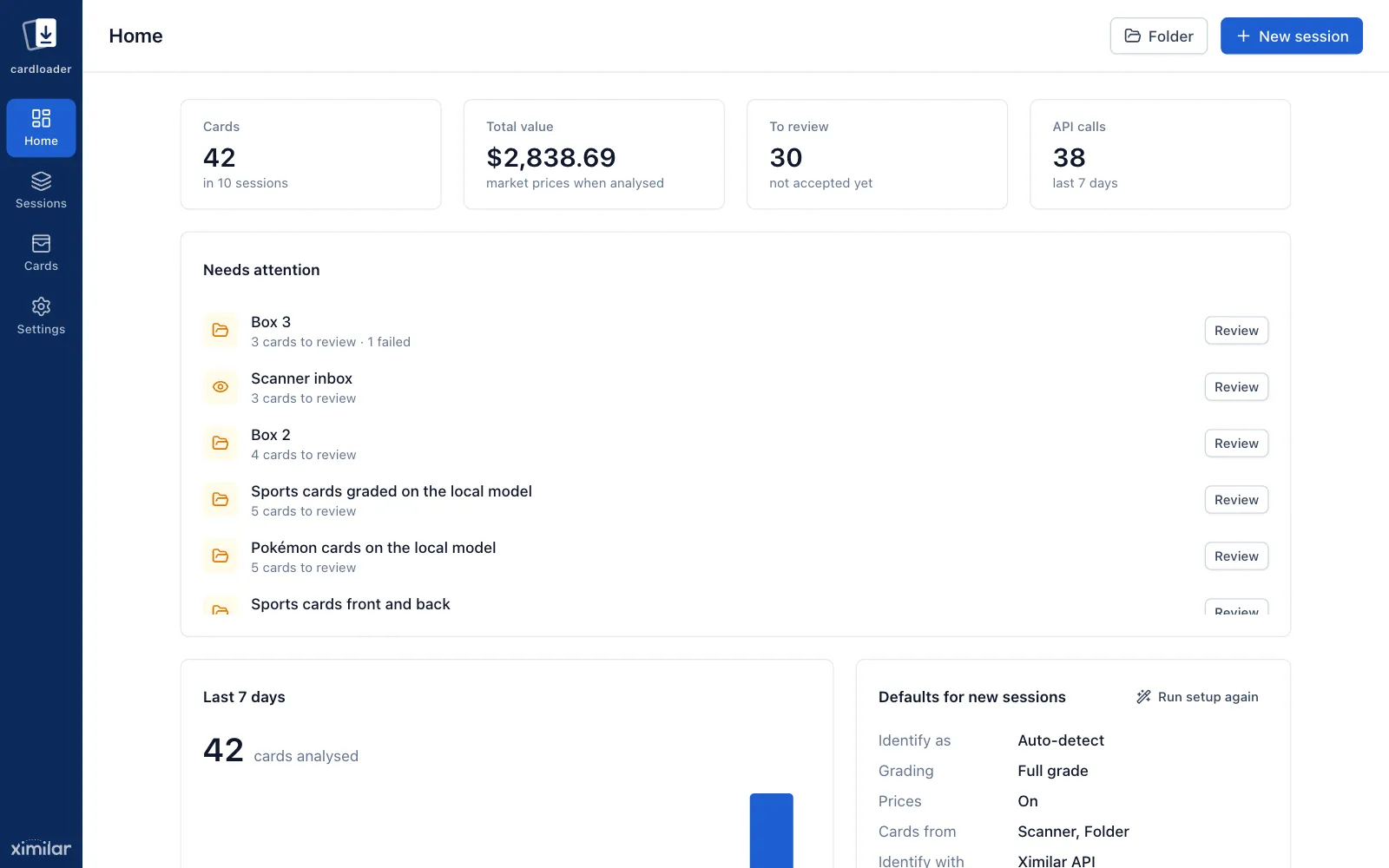
Sessions that need you are listed on Home under Needs attention: failed cards, cards to review and interrupted sessions to resume.
Related tutorials
How to review identified cards
Check every match Cardloader found: accept it, pick another candidate or fix the card, with keyboard shortcuts that make a whole box quick to review.
How to use a watch folder with any scanner
Use any scanner or phone app with Cardloader: let it save pictures into a folder, and a watch-folder session identifies each card as soon as it arrives.
How to scan cards with the Ximilar API
Identify a folder of trading card pictures with the Ximilar API in Cardloader: name, set, number, a confidence for each match and market prices.
Start scanning your cards for free
Download Cardloader for Windows, macOS or Linux, point it at a folder or your scanner, and identify your first batch in minutes. No subscription and no account needed.