
 日本語
 Español
 한국어
 简体中文
 Português
 Français
 Deutsch
 Italiano
 ไทย
 العربية
 Polski
 Bahasa Indonesia
 Türkçe
 हिन्दी
 বাংলা
 Русский
 Tiếng Việt
 Nederlands
 Svenska
 Dansk
 Norsk
 Čeština
 עברית
 Filipino
 Bahasa Melayu
How to turn upside-down cards upright
The Ximilar API identifies a card even when it lies upside down in the picture, and marks it. One click turns the card’s pictures the right way up for everything that follows: the app, exports and listings.
What you need
- A session identified by the Ximilar API (it notices the rotation).
Find the cards marked Upside down
Open a card: an Upside down badge sits under its name when Ximilar found it turned in the picture. The match itself is fine: Ximilar turns the card before identifying it.
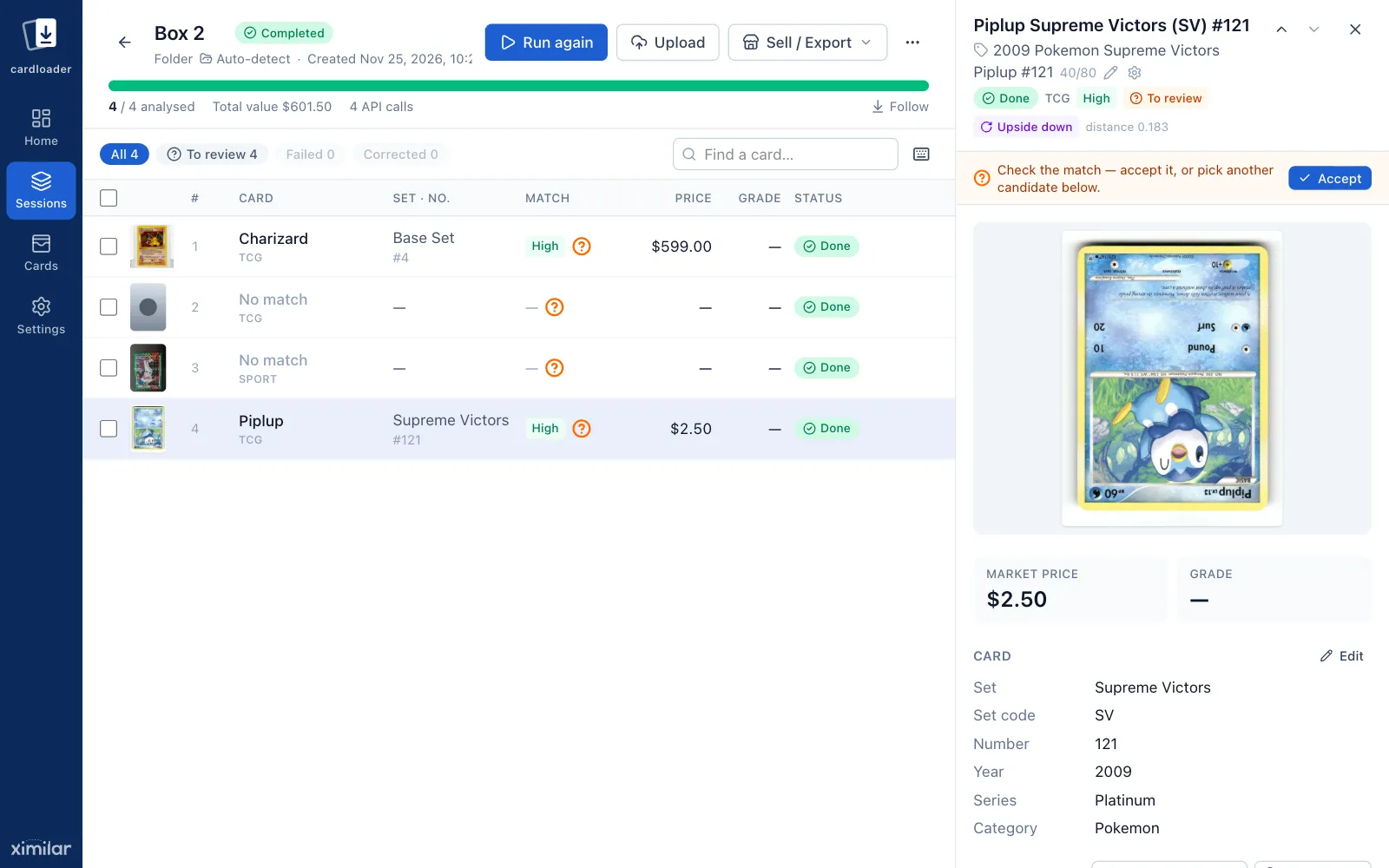
Turn it upright
Click the Upside down badge, then Turn upright. The card’s front and back pictures in the app turn, and so do the pictures exports and listings upload.
Pictures in your own folders are never changed; only scans Cardloader made itself are turned in place.
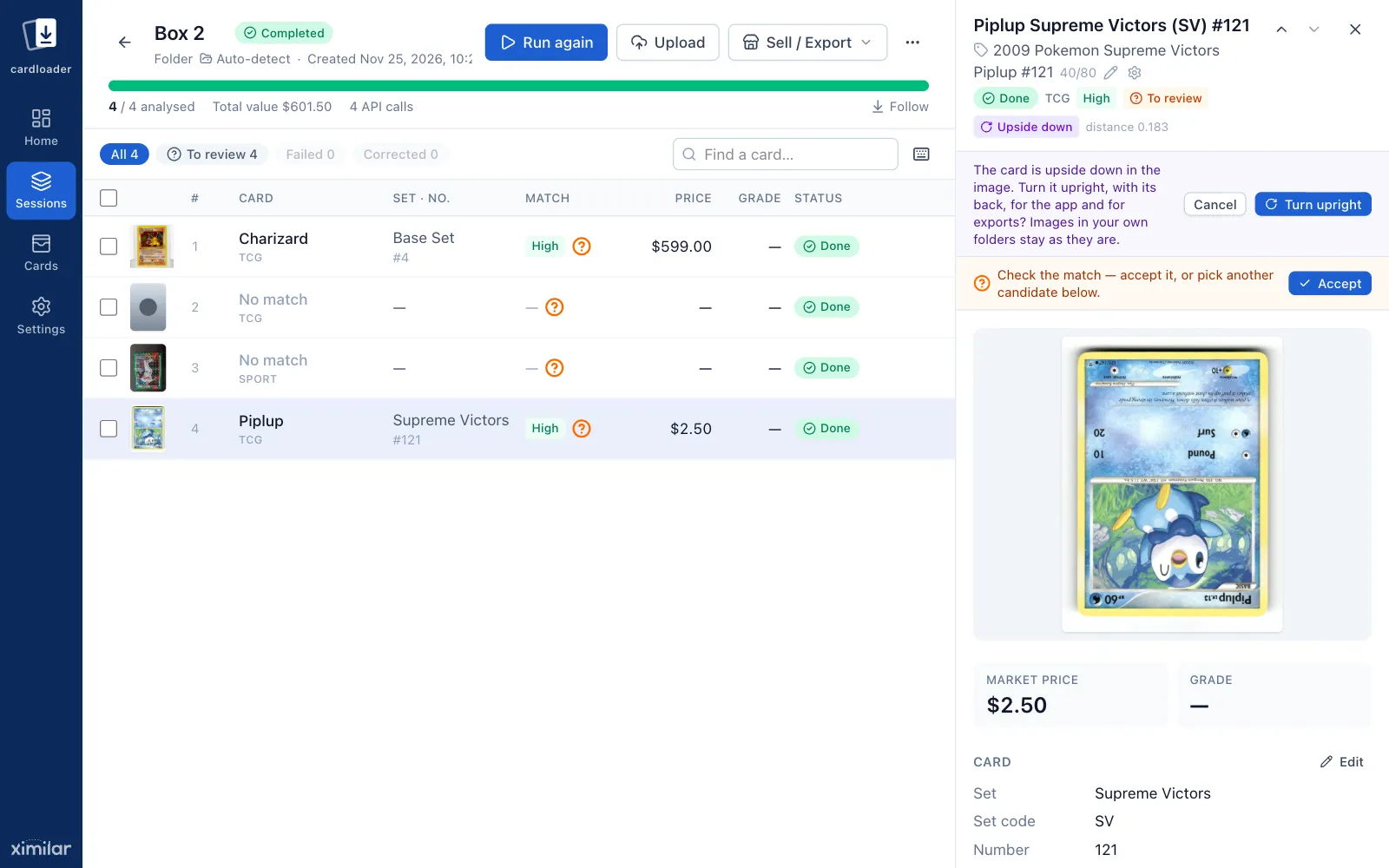
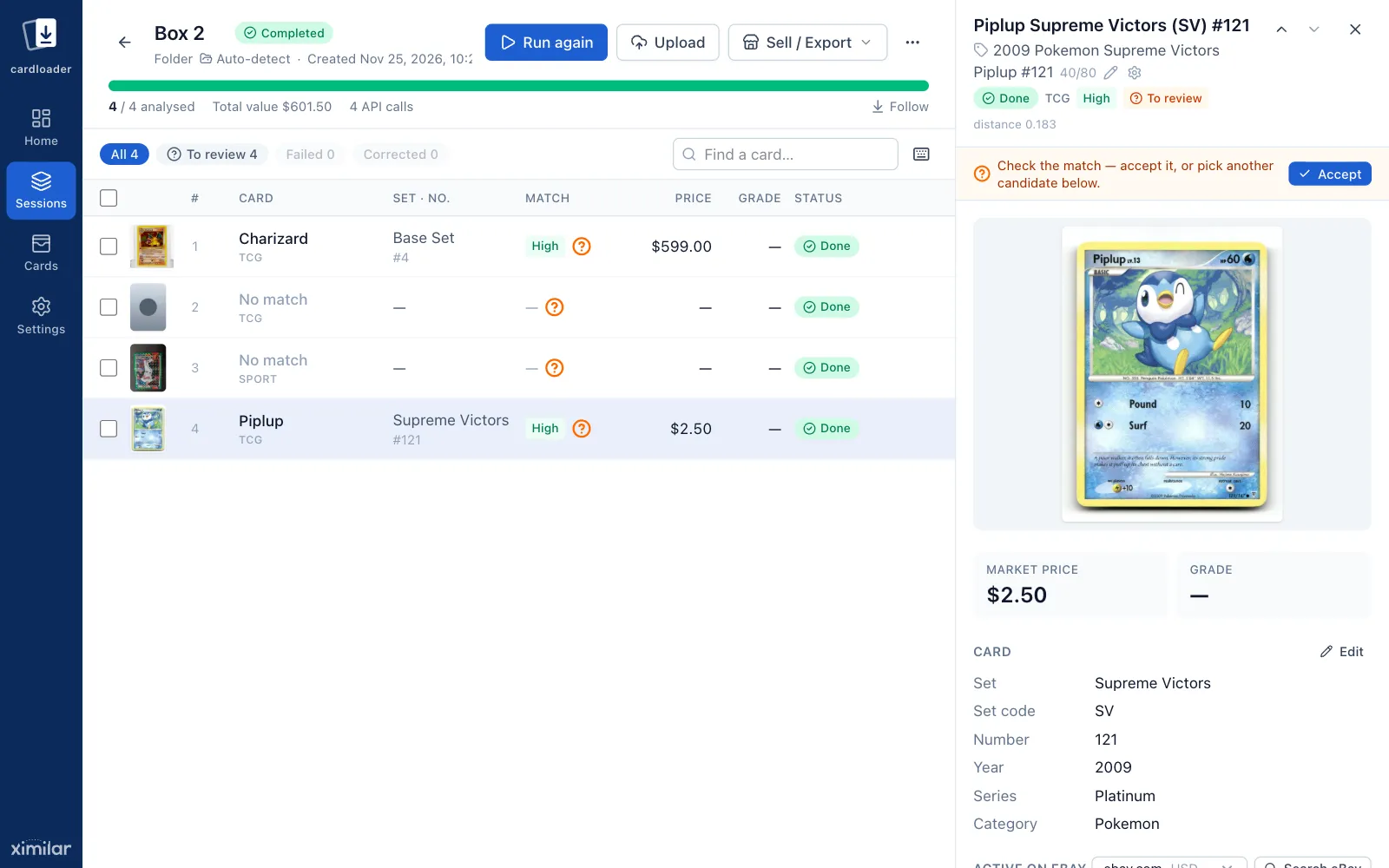
Check the result
The card now shows the right way up. To turn many cards at once, tick them in the table and click Turn upright in the bar that appears: only the cards marked upside down are turned.
Feeding a whole stack bottom edge first? Set Settings › Scanner › Rotation to Upside down and every page is turned as it is scanned (scanner setup).
Related tutorials
How to review identified cards
Check every match Cardloader found: accept it, pick another candidate or fix the card, with keyboard shortcuts that make a whole box quick to review.
How to scan cards with the Ximilar API
Identify a folder of trading card pictures with the Ximilar API in Cardloader: name, set, number, a confidence for each match and market prices.
Start scanning your cards for free
Download Cardloader for Windows, macOS or Linux, point it at a folder or your scanner, and identify your first batch in minutes. No subscription and no account needed.